The VRse Studio Story Editor is a comprehensive tool for creating and editing VR experiences within Unity. It provides a node-based editing system with an intuitive interface for managing story structure, actions, and triggers.

Key Features

  • Node-based story editing system
  • Split-panel interface for efficient workflow
  • Integrated Voice Over generation
  • Copy/paste functionality for rapid development
  • Template-based node creation
  • Real-time save status indicators

Accessing the Story Editor

VRse Tools Overlay

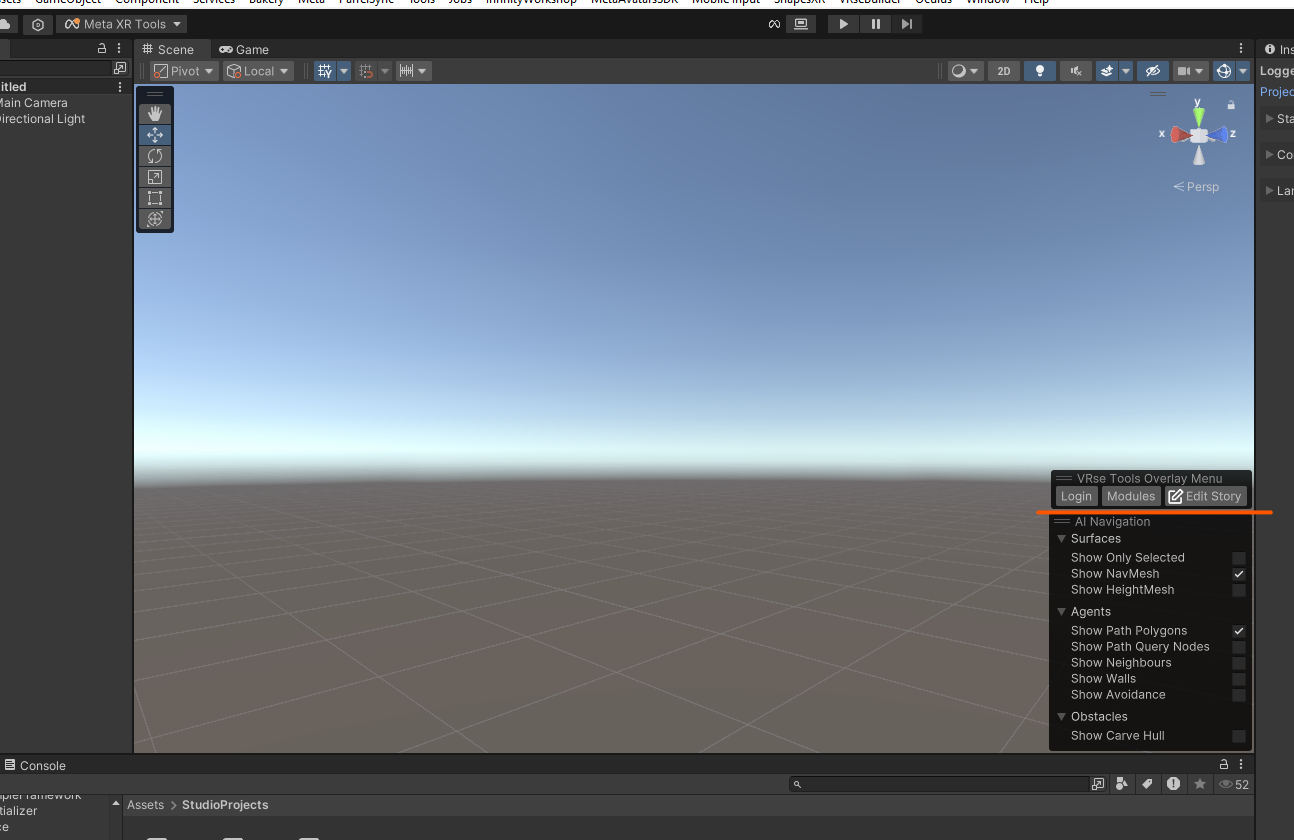
Tools Overlay The VRse Tool Overlay provides three main options: **Login: **Used for logging into VRseBuilder platform within Unity,Required before accessing other tools **Modules: **Opens the VRse Studio Projects window and allows project switching and module management. You can also access the development and art Unity scenes **Edit Story: **Opens the Story Edit Window, This is the primary interface for experience editing also contains all tools and options for story modification

Story Edit Window Interface

The Story Edit Window is organized into four main sections:

3.1 Creator Section

The Creator section is the primary workspace for editing your VR story experiences.

3.1.1 Interface Layout

The Creator section features a split-panel interface with: Left Panel: Navigation Hierarchy
  • Hierarchical chapter and moment navigation
  • Visual highlighting of current selection
  • Quick access to all story elements
Right Panel: Detailed Editing Area
  • Contextual editing interface for selected elements
  • Node-based editing system
  • Parameter configuration panels
Adjustable Splitter
  • Drag to resize panels according to your workflow preferences
  • Optimizes workspace organization

3.1.2 Save Management

Save Status Indicator The save status is clearly indicated through color-coded buttons:
  • 🔴 Red “Save to JSON file” button: Current story contains unsaved changes
  • 🟢 Green “Save to JSON file” button: Story is saved and up-to-date
**Save Process** Step 1: Save Changes
  1. Click the “Save to JSON file” button
  2. A confirmation dialog will appear with:
    • Confirmation button: Proceed with saving
    • Cancel button: Cancel the save operation
Step 2: Confirm Save
  1. Click Confirmation to save changes
  2. Button will turn green to indicate successful save

3.1.3 Load Management

**Load from JSON** Purpose: Restore previously saved story state Use Case: When you want to discard current changes and revert to last saved version Step 1: Load Saved Version
  1. Click “Load from JSON file” button
  2. Current unsaved changes will be discarded
  3. Story will revert to last saved state
> Warning: Loading from JSON will permanently discard any unsaved changes. Ensure you want to lose current modifications before proceeding.

3.1.4 File Management

**Open JSON File** Purpose: View the raw JSON file containing your story data Step 1: Open File
  1. Click “Open File” button
  2. JSON file will open in your default text editor
  3. View raw story structure and data
> Note: This is for viewing purposes. Direct editing of JSON files outside the Story Editor is not recommended.

3.1.5 Voice Over Tool

The Voice Over (VO) Tool provides comprehensive audio generation and management capabilities for your VR experiences. **Accessing the VO Tool** Step 1: Open VO Preview
  1. In the Creator section, click the “VO Preview” button
  2. The Voice Over Previews window will open
VO Preview Window Interface The VO Preview window organizes all voice-over content by story structure: Hierarchical Organization
  • Voice-overs grouped by chapter and moment
  • Clear visual hierarchy for easy navigation
  • Expandable sections for detailed view
Status Indicators
  • Pending Generation: VOs awaiting generation
  • Generated: Completed voice-over files
VO Generation Process Individual VO Generation For Pending VOs:
  1. Locate the VO marked as pending
  2. Click the “Generate Pending VO” button (yellow text) below the specific VO
  3. System will generate audio files for all pending voice-overs
> Note: Currently, this button generates all pending VOs in the story, not just the individual VO. Individual generation functionality will be updated in future releases. Bulk VO Generation For All Pending VOs:
  1. Scroll to the bottom of the VO Preview window
  2. Click the “Generate Pending \<number\> VOs” button
  3. System will generate all pending voice-overs in sequence
VO Testing and Playback Testing Generated VOs Step 1: Locate Generated VO
  1. Find the VO that has been successfully generated
  2. Generated VOs will show a play button at the bottom
Step 2: Play Audio
  1. Click the play button to test the audio
  2. Listen to ensure quality and accuracy
  3. Use for final verification before deployment
Advanced VO Options Regeneration Toggle Fresh Generation Option
  1. Locate the toggle below the “Generate Pending VOs” button
  2. Enable toggle: Delete existing VOs and regenerate all
  3. Disable toggle: Only generate missing VOs
Use Cases for Regeneration:
  • Voice quality improvements
  • Script changes requiring new audio
  • Different voice settings or parameters
Status Messages All VOs Generated
  • When all VOs are complete, window displays: “No pending VOs to be generated.” (green text)
  • Indicates story is ready for deployment
Pending VOs
  • Clear count of remaining VOs to generate
  • Progress tracking for large stories

3.1.6 Node-Based Editing System

The Creator section uses an advanced node-based editing system for intuitive story creation. Key Features Template-Based Node Selection
  • Choose from pre-defined node templates
  • No dependency on external node libraries
  • Consistent parameter structure across node types
Contextual Parameter Editors
  • Parameter editors adapt based on selected node type
  • Organized sections for different parameter categories
  • Expandable sections for better data organization
Enhanced Data Display
  • Improved readability of node data sections
  • Expandable parameter groups
  • Clear visual hierarchy for complex data structures
Node Types and Parameters Actions: Execute specific behaviors in your VR experience Triggers: Detect user interactions and environmental changes

3.1.7 Navigation System

Enhanced Chapter and Moment Organization Hierarchical Structure
  • Clear chapter and moment hierarchy in left panel
  • Visual indicators for current selection
  • Expandable/collapsible sections for better organization
Quick Navigation
  • Click any chapter or moment for instant navigation
  • Visual highlighting shows current selection
  • Breadcrumb navigation for complex stories
Visual Indicators
  • Selected elements: Highlighted in the navigation panel
  • Modified elements: Visual indicators for unsaved changes

3.1.8 Copy/Paste Functionality

The Creator section supports comprehensive copy/paste operations for efficient story development. Supported Operations Chapter Level
  • Copy entire chapters with all contained moments
  • Paste chapters to duplicate story sections
  • Maintain all node relationships and parameters
Moment Level
  • Copy individual moments
  • Paste moments within same or different chapters
  • Preserve all actions and triggers
Node Level
  • Copy individual nodes (actions, triggers)
  • Paste nodes within same or different moments
  • Maintain all parameter settings
Context Menu Operations Three-Dot Menu provides:
  • Copy: Copy selected element
  • Paste: Paste previously copied element
  • Remove: Delete selected elements
Copy/Paste Workflow Step 1: Select Element
  1. Click on the three-dot menu (⋯) next to the element you want to copy
  2. Select Copy from the menu
Step 2: Navigate to Destination
  1. Navigate to the desired location in your story
  2. Click on the three-dot menu (⋯) in the target location
Step 3: Paste Element
  1. Select Paste from the menu
  2. Element will be duplicated with all parameters intact

3.2 Report Section

Analysis and reporting tools for story performance and analytics. (Coming in future update)

3.3 References Section

Asset and reference management for story components. (Coming in future update)

3.4 VRse Objects Section

Object and component management for VR experiences. (Coming in future update)

4. Story Editing Workflow

4.1 Basic Editing Process

Step 1: Open Story Editor
  1. Access VRse Tool Overlay
  2. Click Edit Story
  3. Select Creator section
Step 2: Navigate to Content
  1. Use left panel to navigate to desired chapter/moment
  2. Click on target element for editing
  3. Right panel will display editing interface
Step 3: Edit Content
  1. Add/modify nodes using template system
  2. Configure parameters in contextual editors
  3. Use copy/paste for efficiency
Step 4: Save Changes
  1. Monitor save status indicator
  2. Click “Save to JSON file” when ready
  3. Confirm save operation

4.2 Advanced Editing Techniques

Working with Templates

Using Node Templates
  1. Select “Add Node” in your moment
  2. Choose appropriate template from dropdown
  3. Configure parameters using contextual editors
  4. Save changes

Managing Complex Stories

Chapter Organization
  • Use descriptive chapter names
  • Organize related moments together
  • Utilize copy/paste for similar content
Moment Structure
  • Keep moments focused on single interactions
  • Use clear naming conventions
  • Document complex trigger/action relationships

5. Advanced Features

5.1 Custom Node Creation

For advanced users, new nodes can be added to extend the system’s capabilities.

Adding New Nodes

Step 1: Access Node Template Data
  1. Navigate to: Assets/Core/NoCode/DataVRseHelper/NodeTemplateData.asset
  2. Open the asset in Unity Inspector
Step 2: Define Node Structure
  1. Node Name: Specify the name for your new node
  2. Options: Add different option types for the node
  3. Parameters: Define required parameters for each option
Step 3: Parameter Configuration For each parameter, specify:
  • Parameter Name: Key identifier
  • Data Type: Type of value (string, int, float, bool, etc.)
  • Default Value: Initial value when node is created

Parameter Types

Supported Data Types:
  • String: Text-based parameters
  • Integer: Whole number values
  • Float: Decimal number values
  • Boolean: True/false toggles
  • GameObject: Scene object references
  • Vector3: 3D position/rotation/scale values

5.2 Template System Benefits

Consistency: All nodes follow standardized parameter structures Efficiency: Rapid node creation without manual parameter entry Maintainability: Centralized node definitions for easy updates Extensibility: Easy addition of new node types as needed