Voiceovers (TTS Service)
AI generated voice overs in multiple languages
Every VoiceOver action you have in your story, makes use of TTS services that are attached to your account. You would have setup the same in the Project Configuration
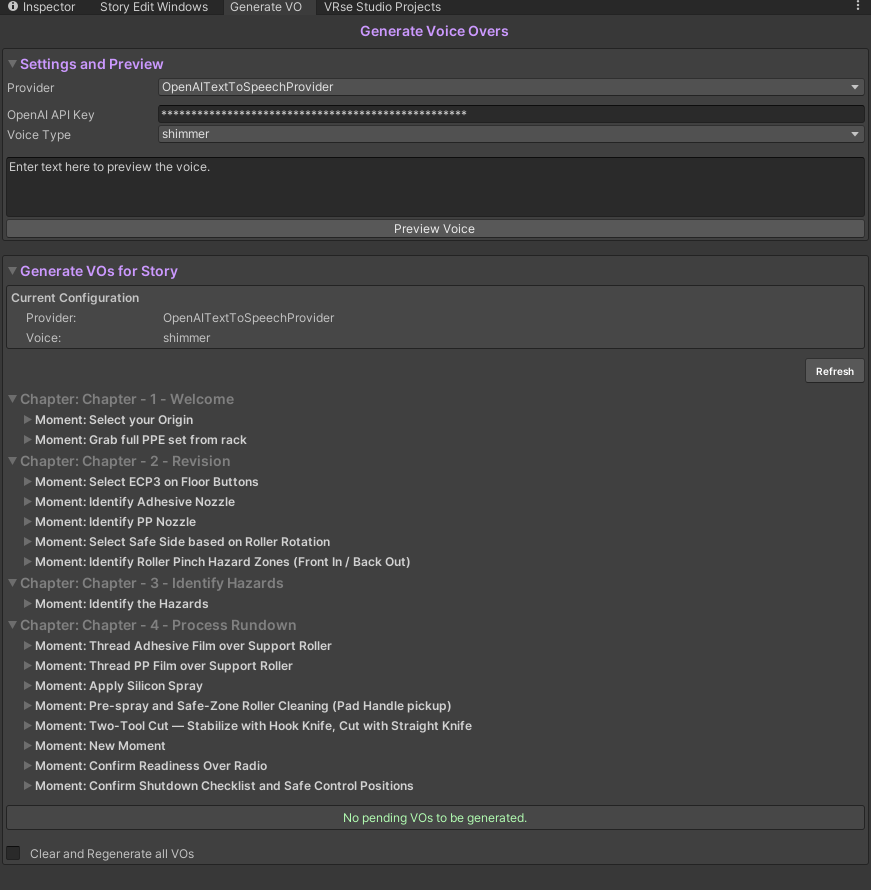
OpenAI TTS
OpenAI TTS Service - https://platform.openai.com/docs/guides/text-to-speech
VoiceMaker (Multi-Language Support)
Read more about services here: https://voicemaker.in
Setup
Go to the Generate VO Window from the bottom of the Story Creator, you will see a window like as shown above
In the **Settings & Preview **section, change provider from OpenAITextToSpeechProvider to VRBAPITextToSpeechProvider and click onApply Settings
In the preview you will be able to apply settings for english only, the rest of the languages are for preview purposes only.
If you are using Localization and wish to set different voices for different languages, go to
Edit > Project Settings > VRseBuilder > Text to Speech It will look like the Image below
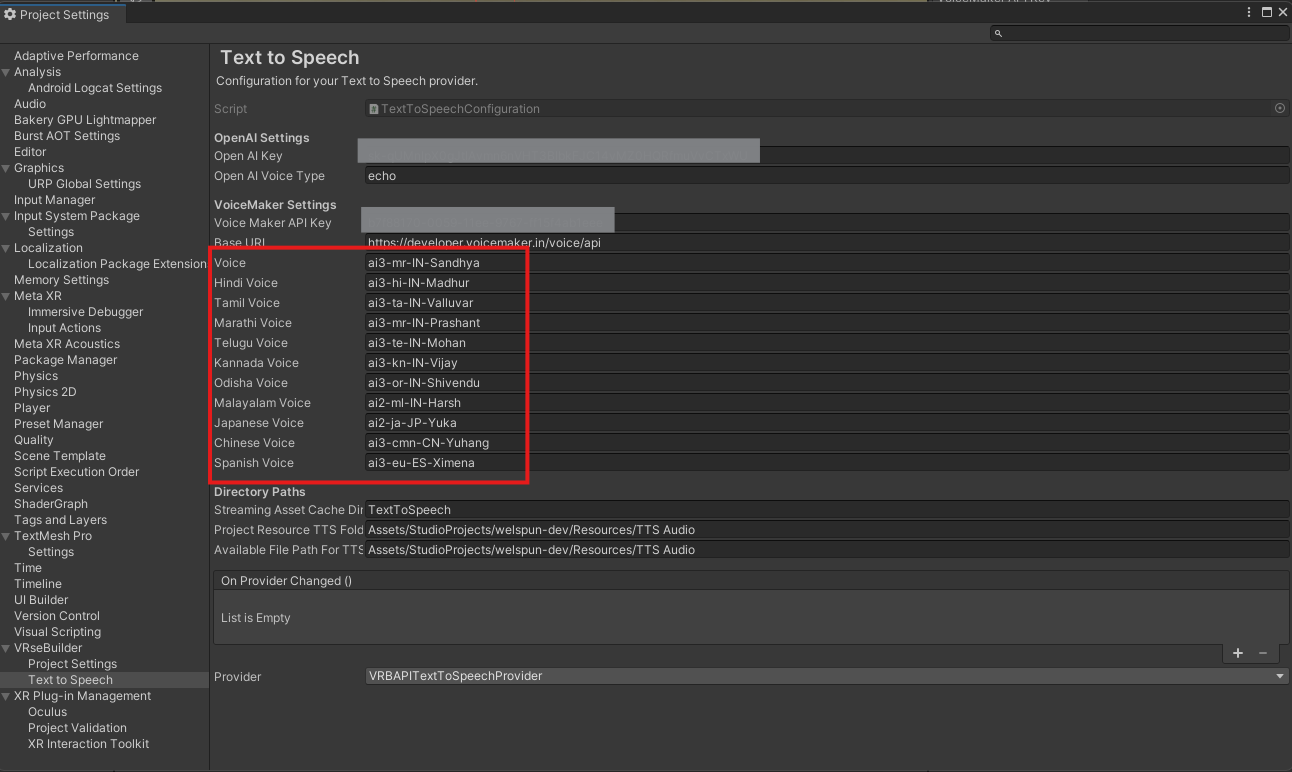
You can set your voice options, chose from the options below, based on the authorisation of your VoiceMaker account, you can chose the language codes available for you. The first option of "Voice" is meant for the default language of your voiceovers
Recommended Voices
| Language | Code |
|---|---|
| English | ai3-en-US-Sophia ai3-Jony ai3-en-US-Zenith ai3-Evan |
| Hindi | ai3-hi-IN-Vihaan ai3-hi-IN-Saanvi ai3-hi-IN-Karan ai3-hi-IN-Ankita |
| Tamil | ai3-ta-IN-Pallavi ai3-ta-IN-Valluvar |
| Telugu | ai3-te-IN-Shruti ai3-te-IN-Mohan |
| Marathi | ai3-mr-IN-Sandhya ai3-mr-IN-Prashant |
You can find a list of more valid voice APis here: https://developer.voicemaker.in/apidocs/list-of-all-voices
Add a Custom Voiceover Provider
Read how to add your own API for VoiceOvers in Add a Custom TTS Provider. You will need a developer to help with this workflow.