Technical Editor (Graph View)
In depth editing of the story and its nodes
This view provides a complete view of each moment, including, the moment lifecycle and the actions and triggers that have been assigned.
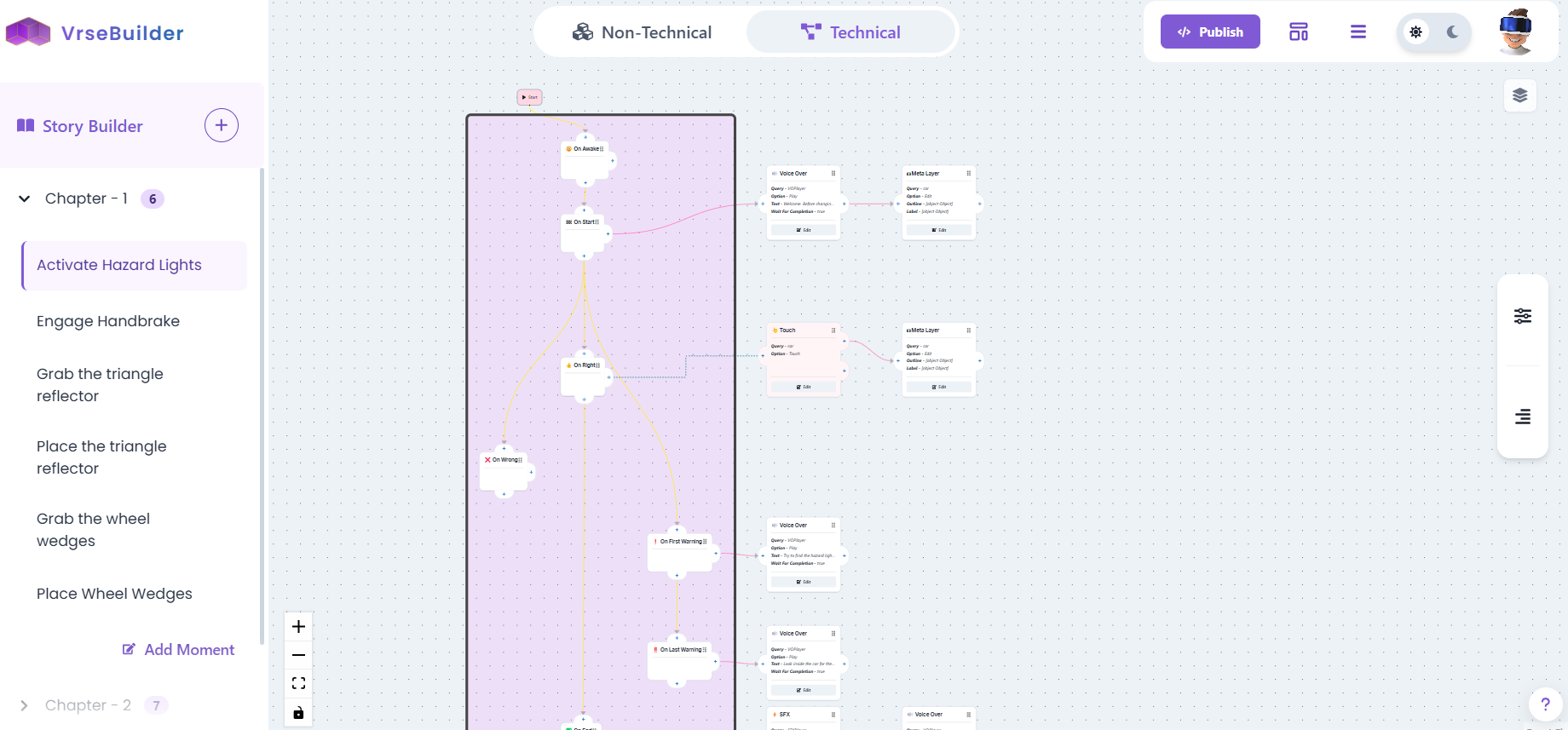
Basics of Using the Technical Editor
Controls
- Backspace to delete a node or node connection
- To create a new connection, left click on the '+' icon on the node and drag and drop on another node's input
Connections
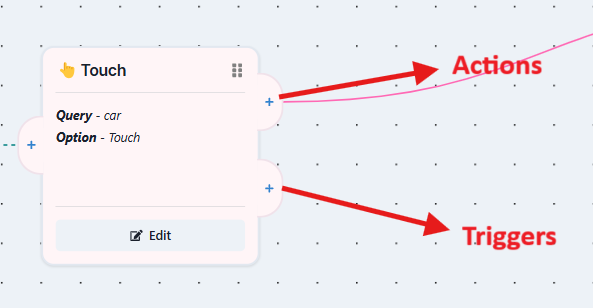
Triggers are the red colored nodes, they have two outputs; actions have only one.
- The upper '+' is for actions to be done after that trigger is executed
- The lower '+' is for adding more triggers to the list
- Each trigger can have its own set of actions
Edit
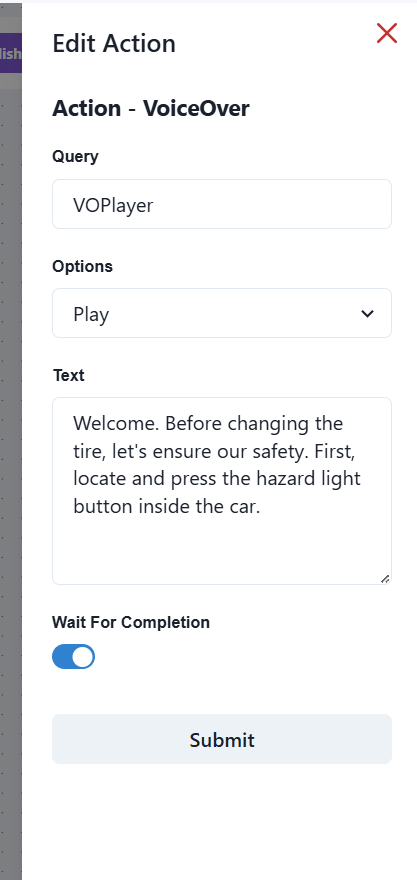
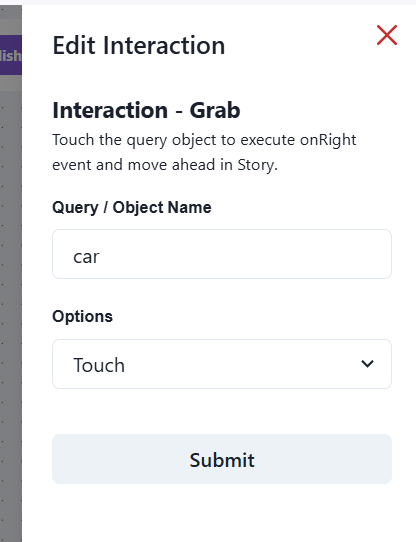
To make further edits to an action or trigger, click on the node, and then click 'edit' to pop up a toolbar.
warning
Any unconnected nodes will be deleted upon saving the story
Moving Nodes
- You can move around any node by simply clicking and holding the top right area of any node
- You can copy/cut one or more nodes and paste them anywhere on any graph
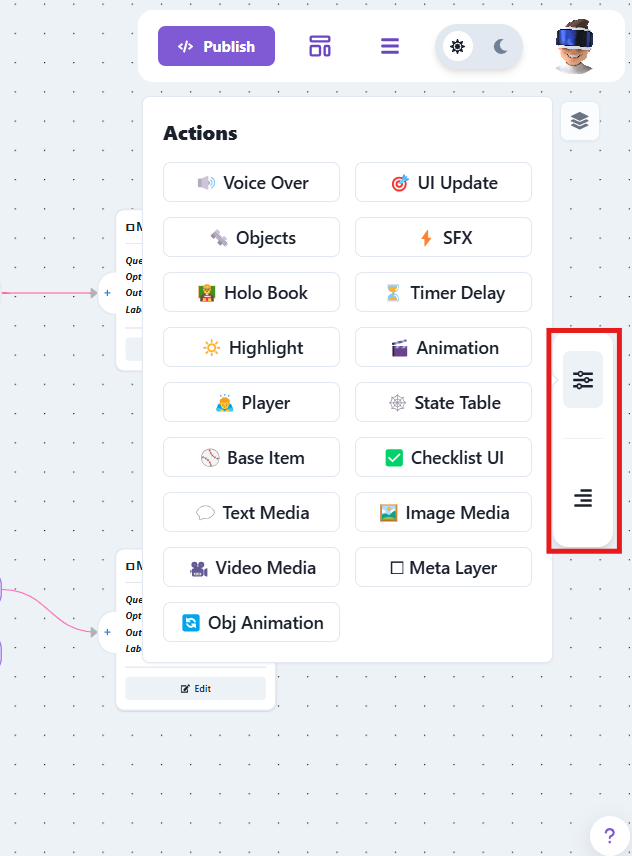
Actions and Triggers Toolbar
The right side of the graph has a toolbar that contains a list of all available actions and triggers.