Evaluating your Users
Embed a quiz in your story to test the users
You may want to test your user from time to time, especially if you are creating experiences for any sort of training, fortunately we have a system in place which helps you quiz and score your user in form of multiple choice questions.
The Setup happens automatically now, you just need to create a module with type "Evaluation" on studio, and Unity setup tool should take care of it
You would however need to set other parameters such as maxAttempts and weightage on your own in the Story Creator
Setup (Legacy)
- Add the “FRAMEWORK SYSTEMS” and “EVALUATION PANEL” prefabs to your scene.
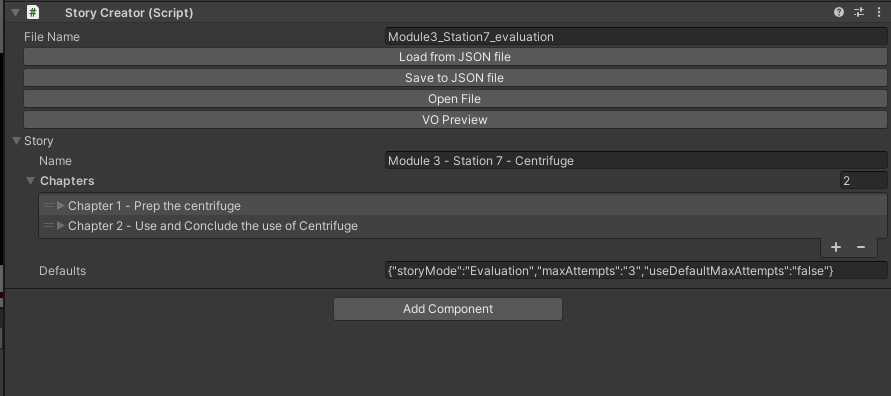
- Add the following json line to the “Defaults” field of the story section.
{"storyMode":"Evaluation","maxAttempts":"3","useDefaultMaxAttempts":"false"}
- Add “weightage” param with value of “1” to the “Defaults” field of every moment which will be considered for evaluation.
{"weightage":"1"}
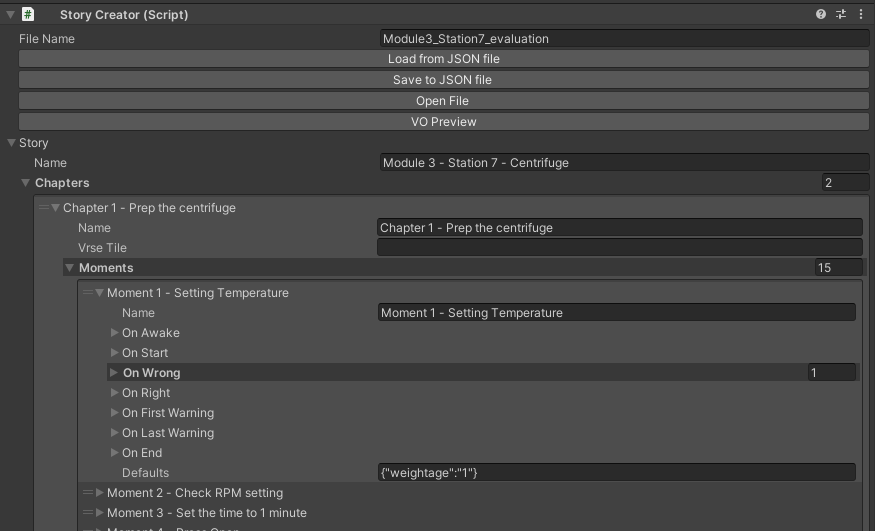
- For moments which is not part of evaluation or doesn’t add scoring, keep its “weightage” as “0”.
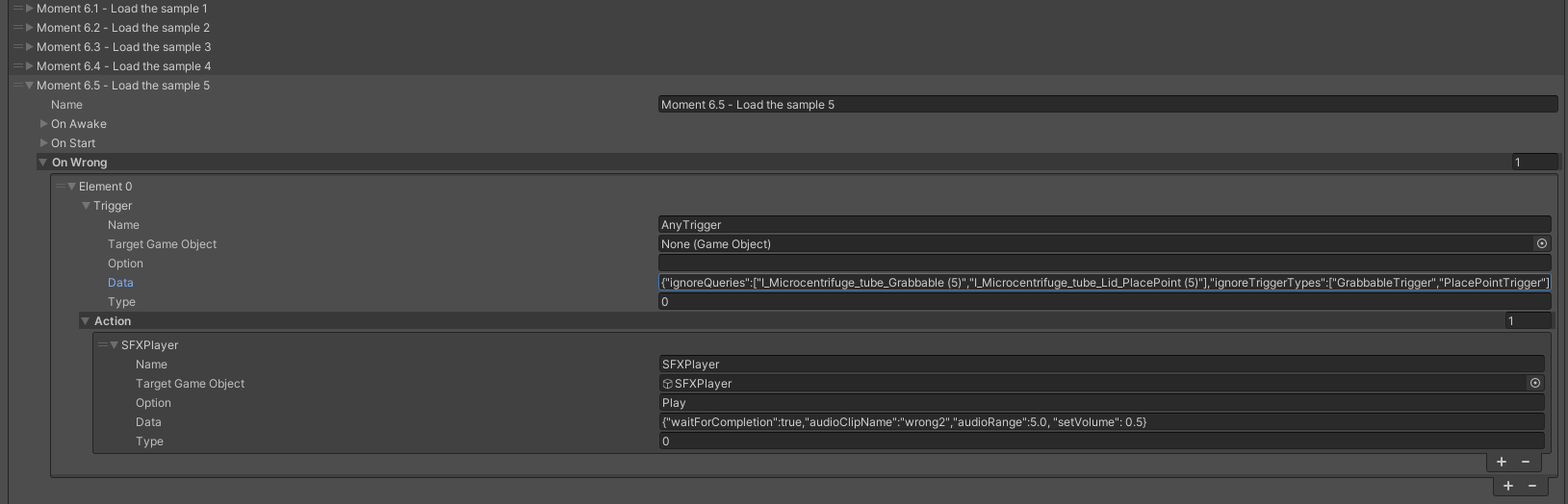
- Using AnyTrigger node as OnWrong trigger.
{"ignoreQueries":["I_Microcentrifuge_tube_Grabbable (5)","I_Microcentrifuge_tube_Lid_PlacePoint (5)"],"ignoreTriggerTypes":["GrabbableTrigger","PlacePointTrigger"]}
- This is a new trigger, which can detect any interactions across all interactable game objects in the scene.
- It can have filters to ignore triggers from mentioned game objects and mentioned trigger group types.
- “ignoreQueries” param takes gameObject names which will be ignored and not get triggered by this node. You can add multiple game objects to this array.
- “ignoreTriggerType” param takes single multiple trigger types and ignores them if they are detected by the AnyTrigger node. There are 4 triggers to select from → GarbbableTrigger, PlacePointTrigger, HandTouchTrigger, PhysicalButtonTrigger
- To the Action nodes of the OnWrong trigger, add a SFXPlayer action with a wrong sound to play.
- Remove all the Warning nodes.
- For right actions to show a message add a “s” node to the OnEnd Actions of a target moment.
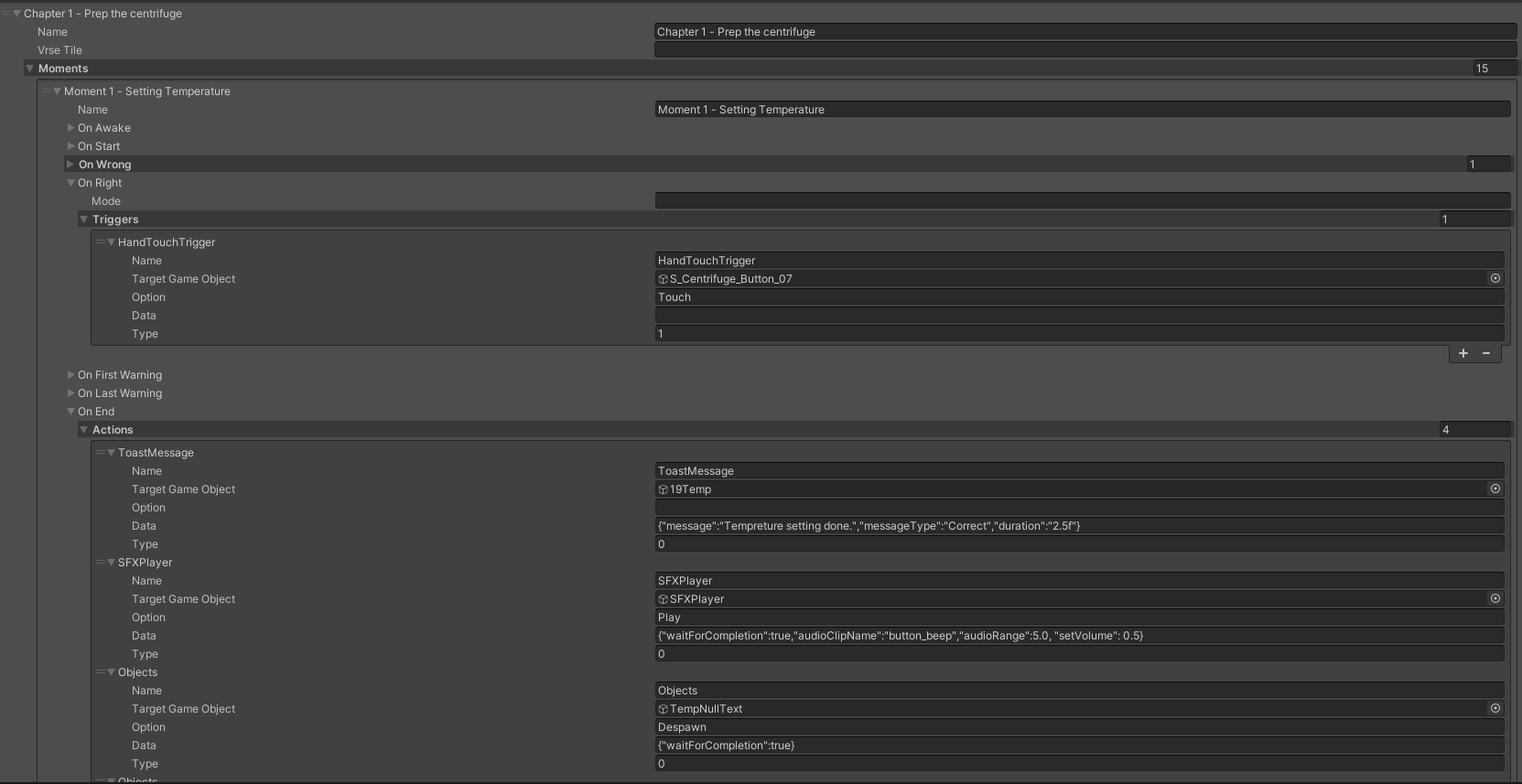
- Here put the success message or moment name so the user understands which step they did correctly.
- Also add a SFXPlayer playing a correct sound for each moment success. Add this to the OnEnd Actions of a target moment.
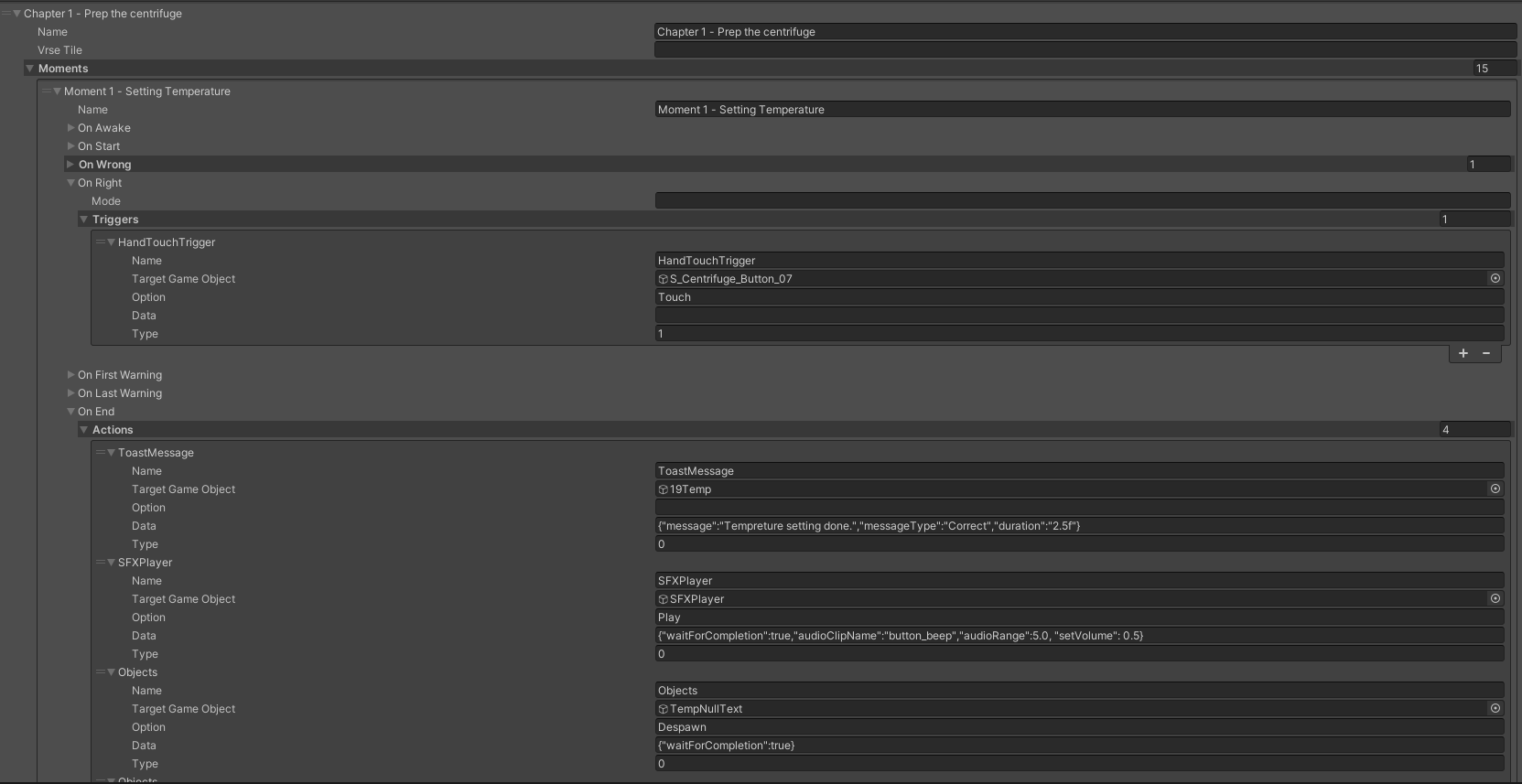
- Rename the target interactable objects to a suitable name as they will be automatically shown as test message to user for a wrong action.
- Steps to follow while creating a story for evaluation.
- For ease of starting out, duplicate the dev scene of the module and rename the Json file in StoryCreator and create a new json file with training story.
- The story for evaluation is mainly a subset of the training story with removed helper nodes like VOs, ObjectHighlighters, HoloBook etc.
- Record the flow of the training module first. Then observe and plan the storyboard for it with the help of the ID. Then plan on the story changes.
- As required remove target nodes, add the above instructed nodes as required and update the parameters mentioned.