

This guide is outdated as of Version 0.5.1
Get your SOP Document
You need a well-formatted SOP (Standard Operating Procedure) which has all the essential step-by-step information on how the training needs to be done. After you have your SOP ready, open VRse Creation Studio LinkBot 1 - SOP to VR SOP (SOP to V1)
In this step, we will convert our ready perfect SOP into a story that is fit for creating VR Experiences via VRse Builder Remember you can only upload Text and Images to these bots, So convert any PDFs, Videos etc to a TEXT format. First, Enter the details in the form: Training Name - eg: Work at Height, Driving Forklifts, QA lab testing Training Type - eg: Process/Safety Traying Type of Docs Attached: SOP Training Docs Text: Paste your SOP here Upload Images: You can upload any images here (1 MB max Suggested per image) Once done press ‘Next’ and wait for the Bot to Generate the output Bot 1 will take approximately ‘4-5’ minutes to finish running Step 1 - Add fields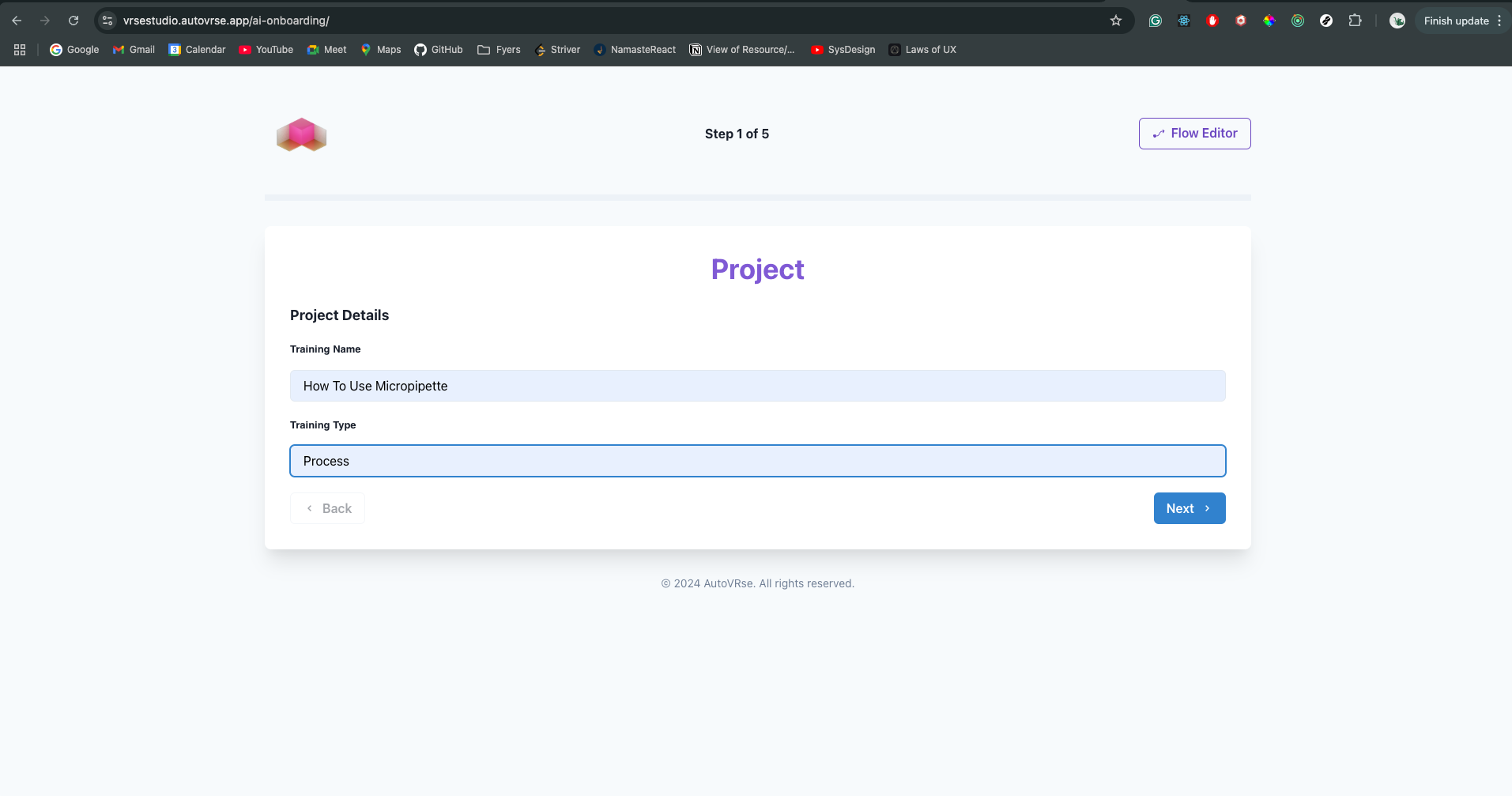

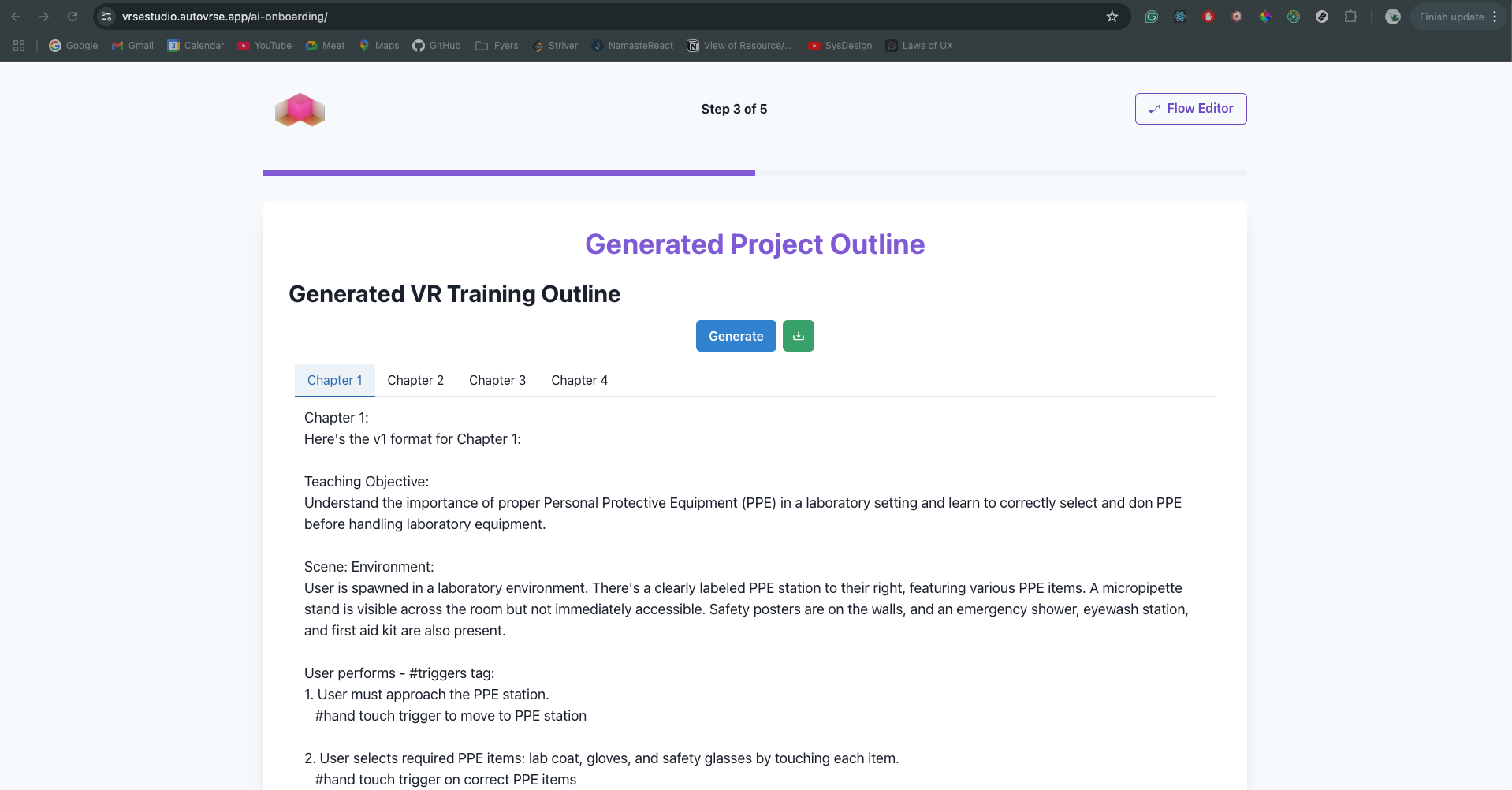
Bot 2 - VR SOP to VR Script (V1 to V2)
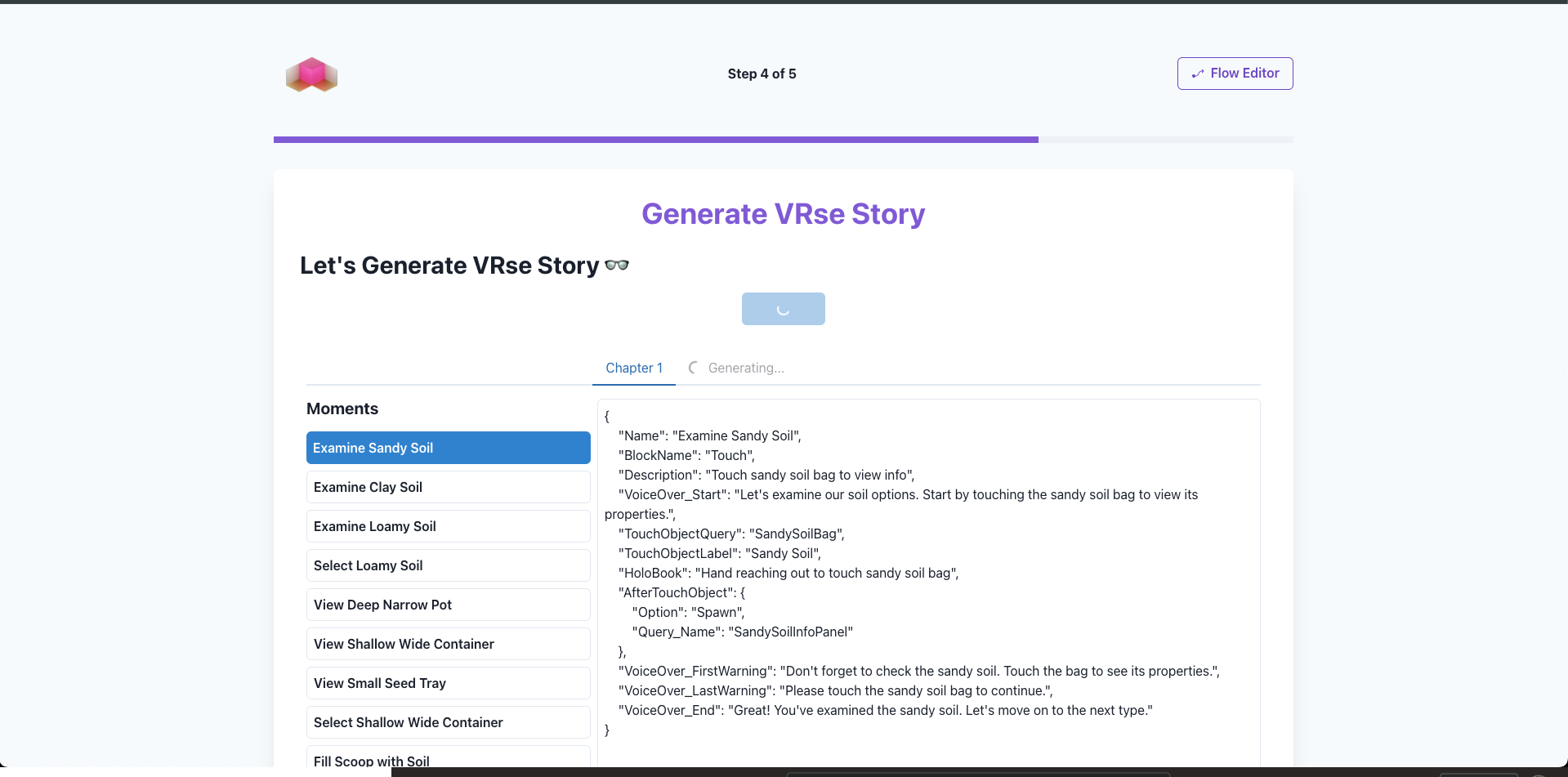
Now, we convert the V1 output to a vrse-builder readable format (JSON-like). You cannot edit this output, But if you are unhappy with the output you can always re-run the bot. Step 1 - Click on ‘Generate’ to Generate VRse Story - This is NOT editable.
✍️ Editing in Studio
Final Step - Click ‘Proceed To Studio’ & Select a ‘Chapter’ Here you can Edit add moments and Stuff. For now, we have ‘Touch Moment’ working, and the rest are in WIP. But you can still add and try to tinker. Have FUN!
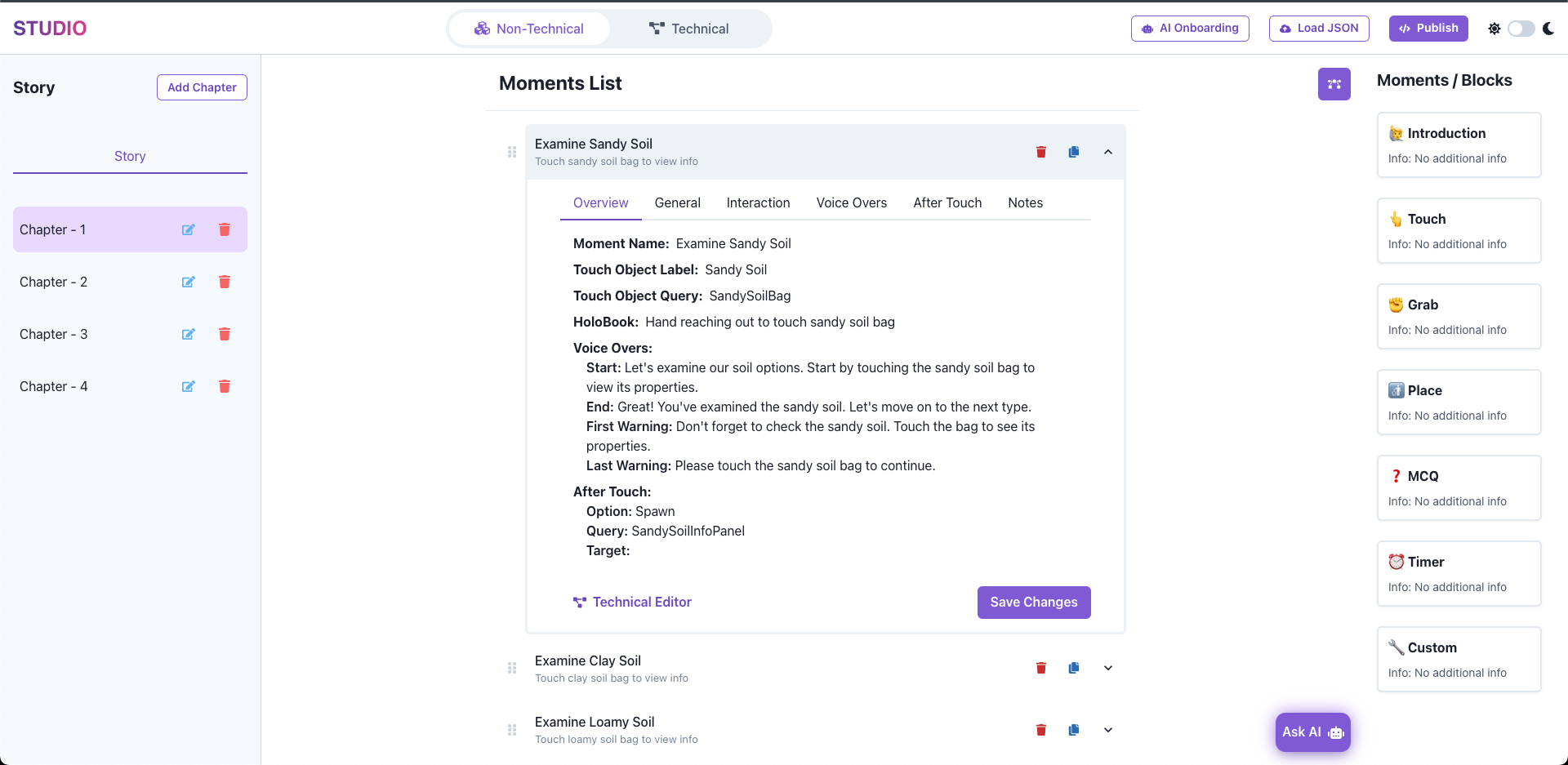
- Rearrange Moments,
- Duplicate them
- Edit content like - VoiceOvers - Touch Object, and Queries.