VRseBuilder Unity MCP Setup
Connect an MCP-compatible AI agent to the Unity Editor so you can author VRseBuilder content in natural language. This guide assumes VRseBuilder core is already installed. Plan for 5–10 minutes.
Prefer video? Watch How to Setup MCP.
VRseBuilder Unity MCP is a heavily edited fork of AnkleBreaker Studio's unity-mcp, extended by AutoVRse with domain-specific knowledge for VR content authoring. Once connected, your agent can create scenes, GameObjects, components, and scripts, trigger builds, and more — across 268+ tools in 30+ categories.
How It Works
| Component | Role |
|---|---|
| Unity Editor Plugin (source) | UPM package. Runs a local HTTP bridge inside the Unity Editor on port 7890. |
| MCP Server (source) | Node.js process between your agent and the plugin. Translates MCP tool calls into HTTP requests. |
| AI Agent | Any MCP-compatible client. The dashboard's Configure button writes the server entry into the agent's config automatically. |
The server exposes ~70 core tools directly and routes 130+ advanced tools through a single unity_advanced_tool proxy. Multiple agents and multiple Unity instances (including ParrelSync clones) are supported simultaneously.
Prerequisites
| Requirement | Details |
|---|---|
| VRseBuilder core | Already set up. See Setup. |
| Unity Editor | 2021.3 LTS or newer (tested on 2022.3 LTS and Unity 6). |
| MCP-compatible agent | Cursor, Claude Code, Claude Desktop, OpenCode, Codex, or any other MCP client. |
| Internet | For package and npx downloads. |
Step 1: Install the VRse MCP Plugin
Via Project Hub (recommended)
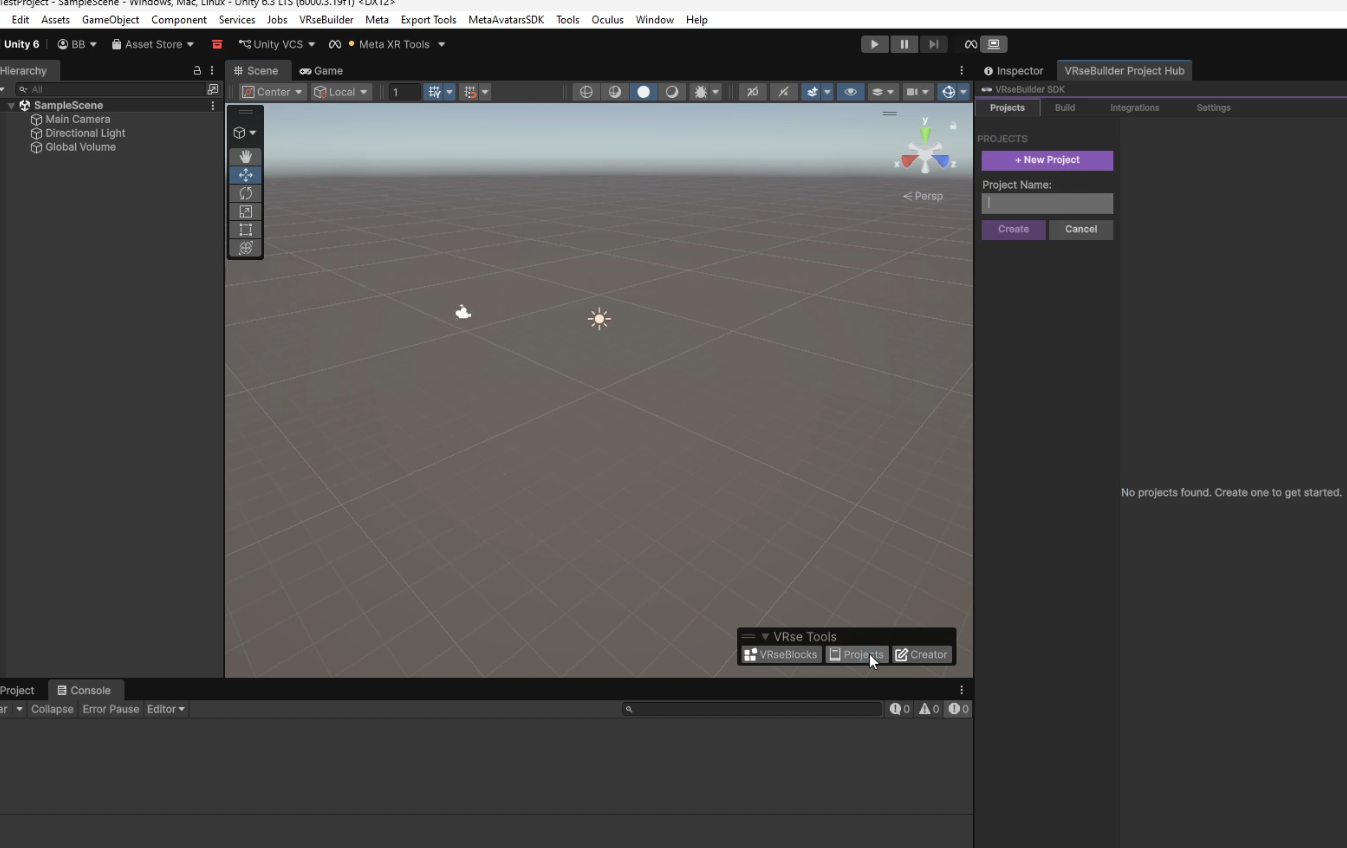
- Open the VRseBuilder Project Hub — VRse Tools widget → Projects, or VRseBuilder > Project Hub.
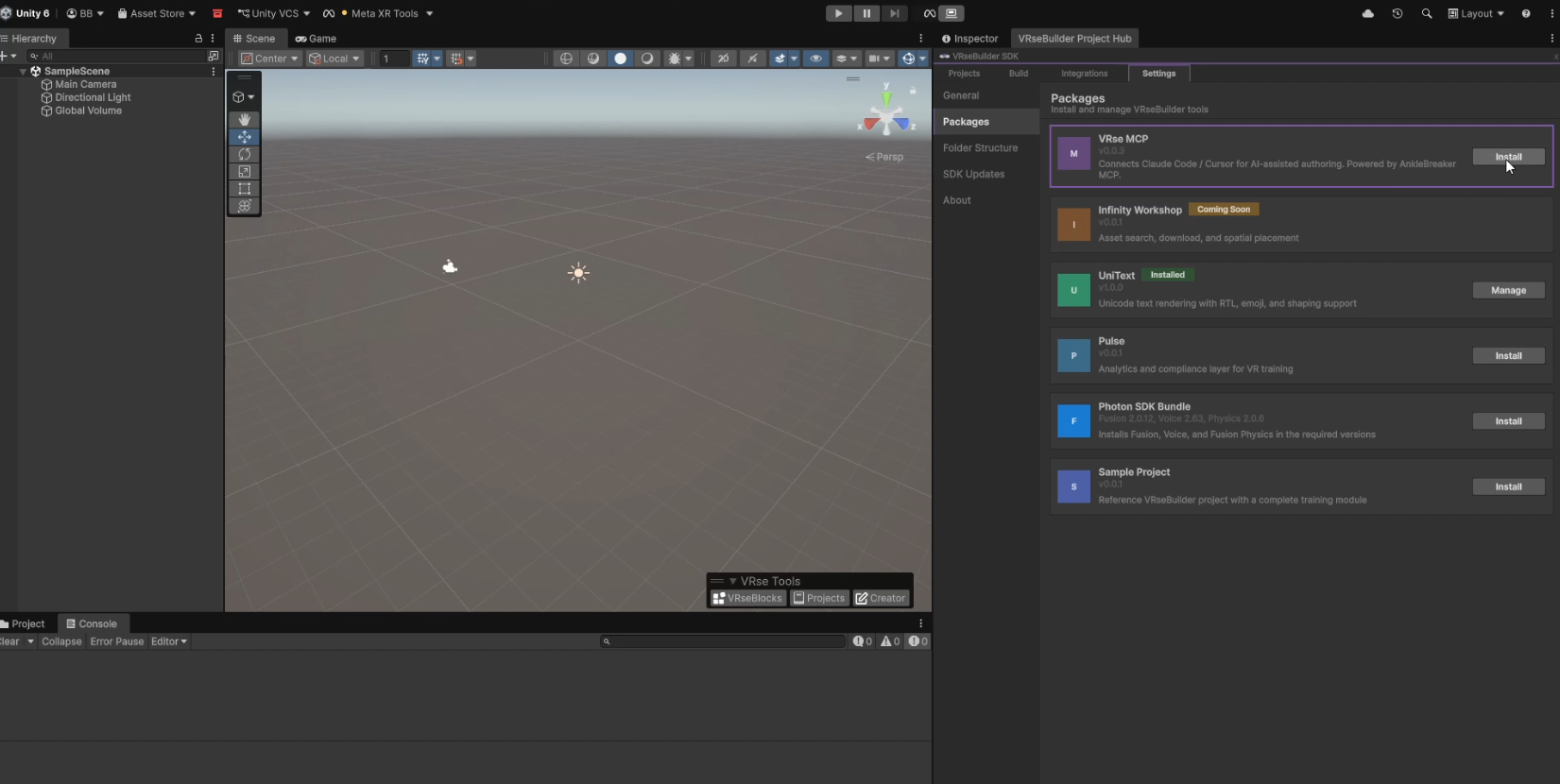
- Go to Settings → Packages.
- Find VRse MCP and select Install. Wait about a minute for the row to show Installed.
Via Package Manager (manual)
- Window → Package Manager → + → Add package from git URL…
- Enter:
https://github.com/AutoVRse-Enterprise/VRseBuilderSDK-mcp-plugin.git
- Select Add. When Unity finishes compiling, the bridge starts on port
7890— you'll see a message in the Console.
Step 2: Connect Your AI Agent
- Back in Project Hub → Settings → Packages, find VRse MCP and select Manage.
The VRseBuilder Unity MCP window opens (also Window → VRseBuilder Unity MCP). - Select your agent from the dropdown: Cursor, Claude Code, Claude Desktop, OpenCode, Codex, or Other.
- Select Configure (e.g. Configure Cursor). The dashboard locates the agent's config file and writes the MCP server entry.
- Restart your agent so it picks up the new config.
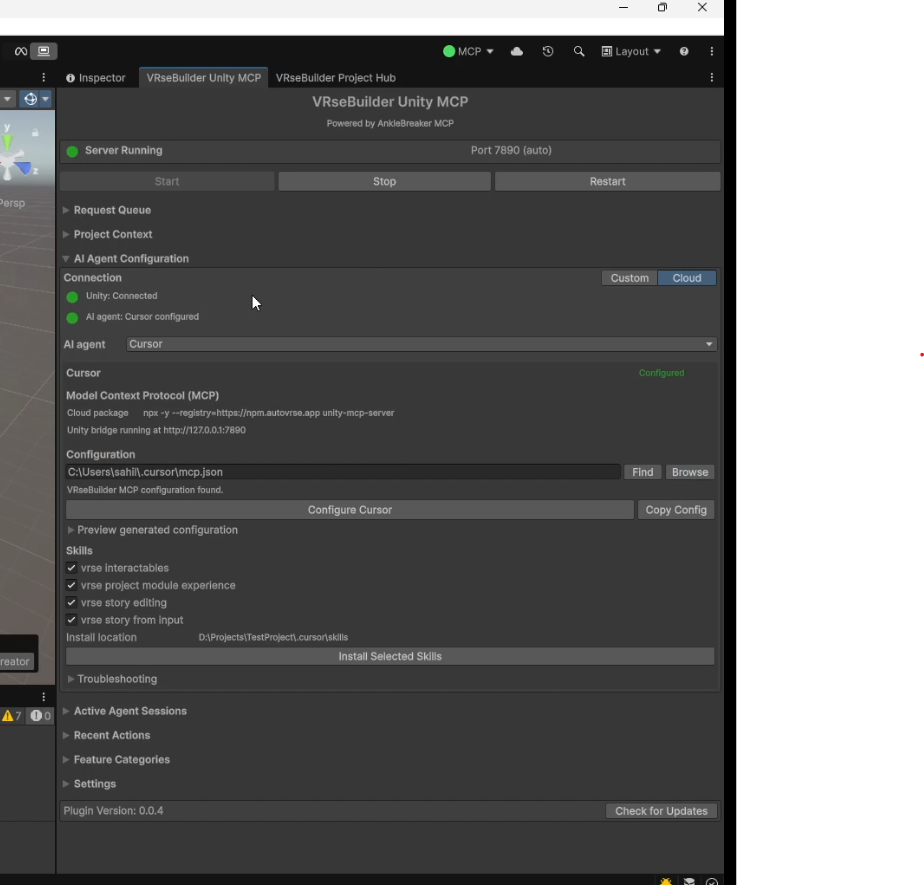
Green Server Running dot + Unity: Connected + AI agent: Cursor configured — setup is complete.
Fallback: ask your agent to configure it
If Configure doesn't write the file, copy the config snippet below and paste it into your agent's chat with this prompt:
I need to add a VRseBuilder MCP server to my config. Here are the details — can you help me set this up?

For Cursor / Claude Code (mcpServers JSON):
{
  "mcpServers": {
    "vrsebuilder": {
      "command": "npx",
      "args": ["-y", "--registry=https://npm.autovrse.app", "unity-mcp-server"]
    }
  }
}

For Codex (TOML):
[mcp_servers.vrsebuilder]
command = "npx"
args = ["-y", "--registry=https://npm.autovrse.app", "unity-mcp-server"]
Most agents will handle the rest. Restart the agent afterwards.
Step 3: Verify the Connection
Check the VRseBuilder Unity MCP window for three green indicators:
| Indicator | What to look for |
|---|---|
| Server Running | Green dot, port 7890 shown |
| Unity Connected | Green dot |
| AI Agent Connected | Green dot, agent name shown |
Step 4: Add Your Unity Project to the Agent's Workspace
The agent needs direct filesystem access to read and write scripts and assets — the MCP bridge alone isn't enough.
- In your agent, go to File → Add Folder to Workspace (wording differs per agent).
- Select the Unity project root (the folder containing
Assets/,ProjectSettings/, etc.).
Step 5: Test the Connection
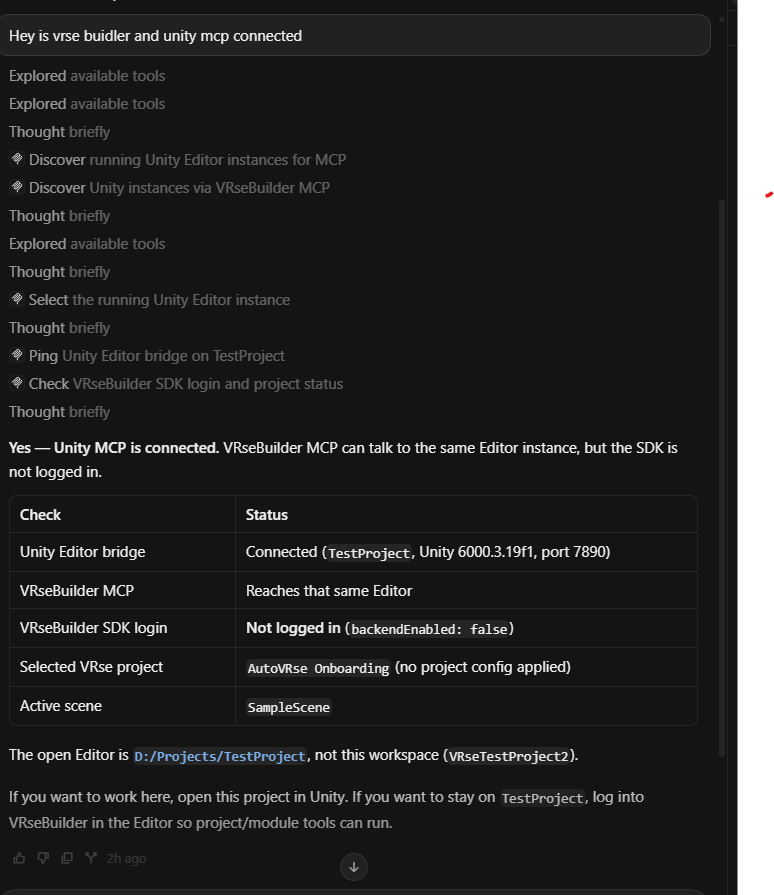
In your agent's chat, ask:
Are VRseBuilder and Unity MCP connected? Can you see my scene hierarchy?
You should see MCP tool calls fire and get back a confirmation. Then try a real action:
Create a red cube at position (0, 2, 0) and add a Rigidbody
If Unity updates in the editor, you're done.
Troubleshooting
| Symptom | Likely cause | Fix |
|---|---|---|
| No green Server Running dot | Plugin not installed or bridge not started | Reinstall VRse MCP. Check the Unity Console. |
| Agent says MCP server not found | Config not written | Re-run Configure, or use the fallback prompt above. Restart the agent. |
| Agent connects but can't see Unity | Multiple Editor instances open | The dashboard will prompt you to select the correct instance. |
Port 7890 already in use | Another app using the port | Change the port in dashboard Settings. |
| Tool calls fail or time out | Unity is compiling | Wait for compilation to finish, then retry. |