Hand Pose Recorder
Learn how to use the Hand Pose Recorder tool to create and assign realistic hand poses to grabbable objects.
Overview
The HandGrabPose Creation Tool is a utility designed for use with the MetaXR SDK within Unity. It enables developers to create and assign realistic hand poses to grabbable objects using hand tracking.
This tool is specifically designed to function with the MetaXR Grab system and is not compatible with AutoHand or other third-party grab solutions.
VRseBuilder Integrated with MetaXR SDK uses the MetaXR Grab system.
Usage Instructions
- Prepare the Scene
- Disable the Default MetaXR Rig: Temporarily deactivate the main MetaXR rig (e.g.,
MetaXRMasterRigNetworkedNoColliders) to avoid conflicts during pose creation. - Add the MetaXR-HandPose Rig: Drag the
MetaXRMasterRigHandPoseRecorderprefab into your scene. This rig includes the specialized logic for recording and saving hand poses.
noteAfter successfully creating and saving the hand poses, remove the
MetaXRMasterRigHandPoseRecorderfrom the scene and re-enable the main MetaXR rig (MetaXRMasterRigNetworkedNoColliders). - Disable the Default MetaXR Rig: Temporarily deactivate the main MetaXR rig (e.g.,
- Enter Play Mode
- Start Play Mode in the Unity Editor.
- Ensure hand tracking is functioning and both virtual hands are visible.
- Position Near Grabbable
- Move your tracked hand close to the grabbable object you want to create a pose for.
- Position your hand naturally around the object as if you are grabbing it.
- Record a Hand Pose
- Press the Record button in the pose creation UI.
- A countdown timer (e.g., 3 seconds) will begin.
- Form your desired hand shape during this countdown.
- The last pose before the timer ends will be captured and stored temporarily.
- Save or Discard Poses
- Click Save to store the recorded hand pose for saving.
- If the pose is not correct, click Undo to discard it.
- You can record multiple hand poses before saving them all at once.
- Finalize the Poses
- Exit Play Mode gracefully.
- All saved hand poses will be automatically assigned to the parent grabbable objects in the scene.
warningHand poses are only saved when exiting Play Mode normally. If Unity crashes or is forcefully closed (e.g., via Task Manager) during Play Mode, all recorded poses will be lost.
If you see a
HandGrabInteractableGameObject inside your Grabbable object after exiting Play Mode, it means you have successfully created the hand grab pose.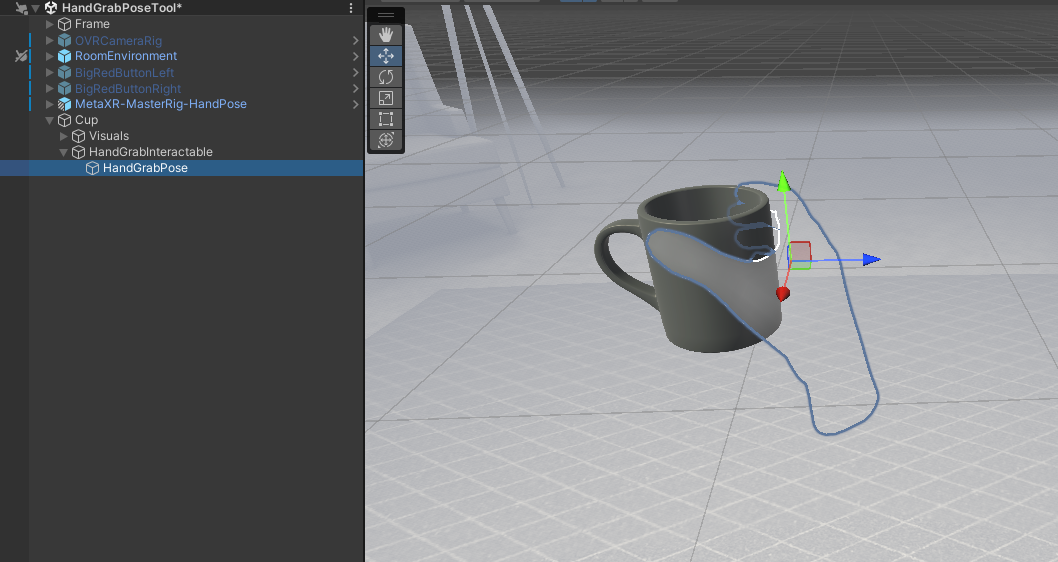
Best Practices
- Steady Hands: Keep your hand steady and in the desired shape when the countdown ends to ensure accurate capture.
- Natural Grip: Aim for ergonomic, user-friendly hand poses that feel natural when grabbing the object.
- Test in Play Mode: You can test the recorded hand pose in the same Play Mode session by using a pinch or palm gesture within the grabbable's interaction range. If the object is grabbed using the expected pose, it confirms correct setup.
- Backup Frequently:
- Click the Save button after every 8–10 recorded poses.
- Always exit Play Mode properly to commit all saved data.
- Avoid crashing Unity or ending the session via Task Manager while in Play Mode—poses will not persist.
Advanced Techniques
- Refining Poses: Adjust individual finger joint angles, hand rotation, or position directly in the Unity Editor after recording. Remember to save the scene.
- Mirroring Poses: Use the mirror utility in the editor to quickly generate the opposite hand pose from an existing one.