> ## Documentation Index
> Fetch the complete documentation index at: https://docs-vrsebuilder.autovrse.app/llms.txt
> Use this file to discover all available pages before exploring further.
# Story Builder (Legacy)
> Convert your Training SOP into a VR-Ready Story
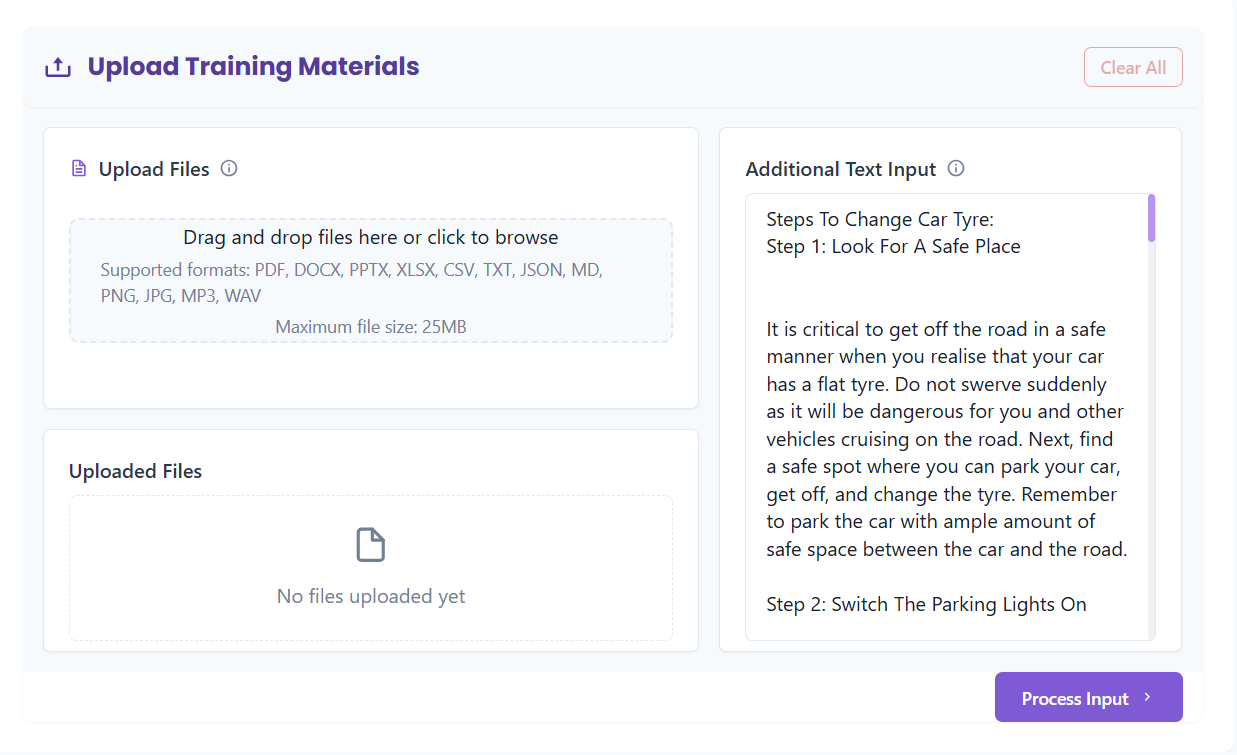
### Upload any document
To generate the storyboard for your VR module, upload a document and/or add text input as required.
If you're typing out your desired expierence (as opposed to uploading an existing SOP), then remember to describe each step of your procedure in as much detail as possible. It's important to include the consequences of missed steps or performing tasks out of order.
 On the next screen you will see **Parsed Input**, this is essentially a break down of everything you have uploaded in its raw text format
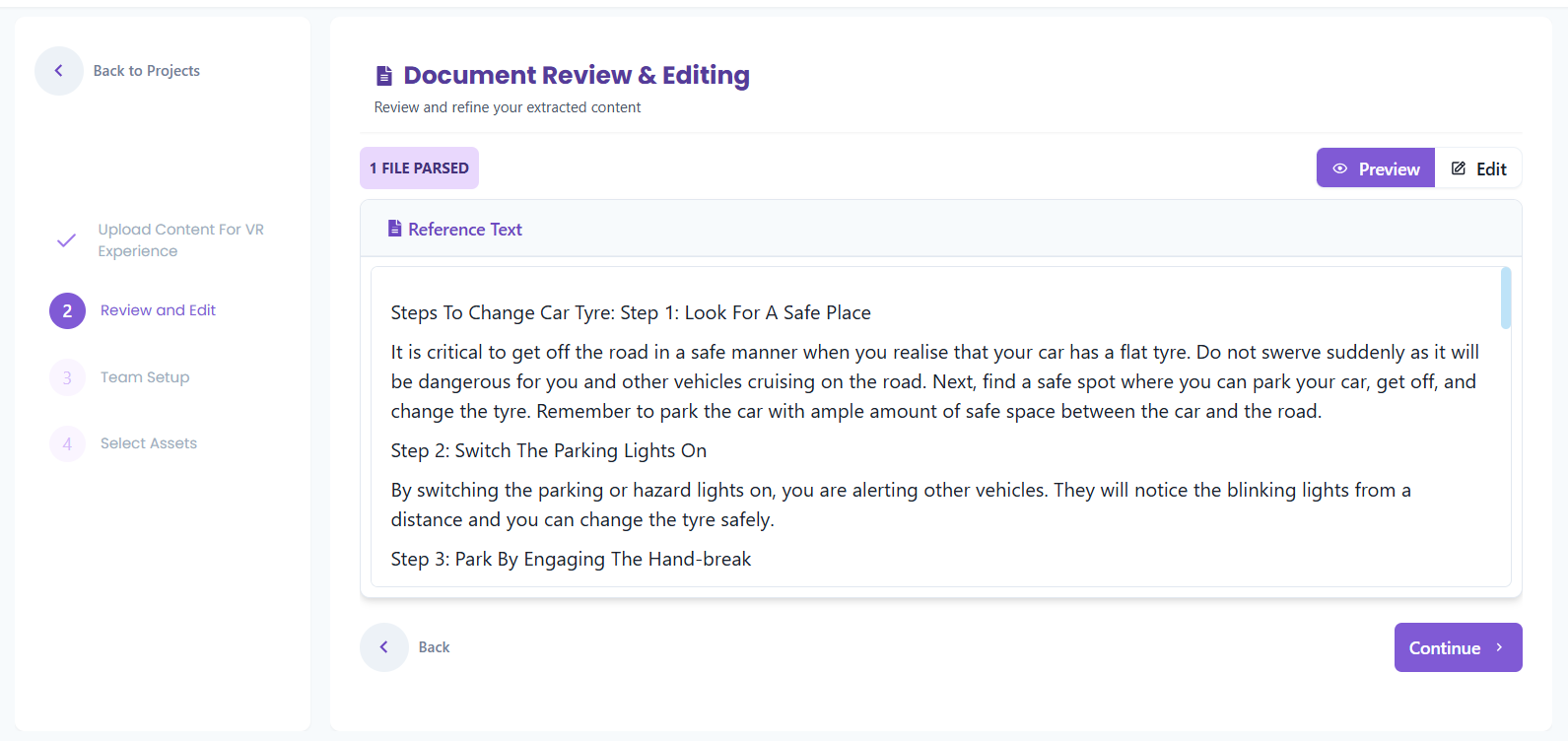 You can make changes to your documents here if required.
### Configure the Agents
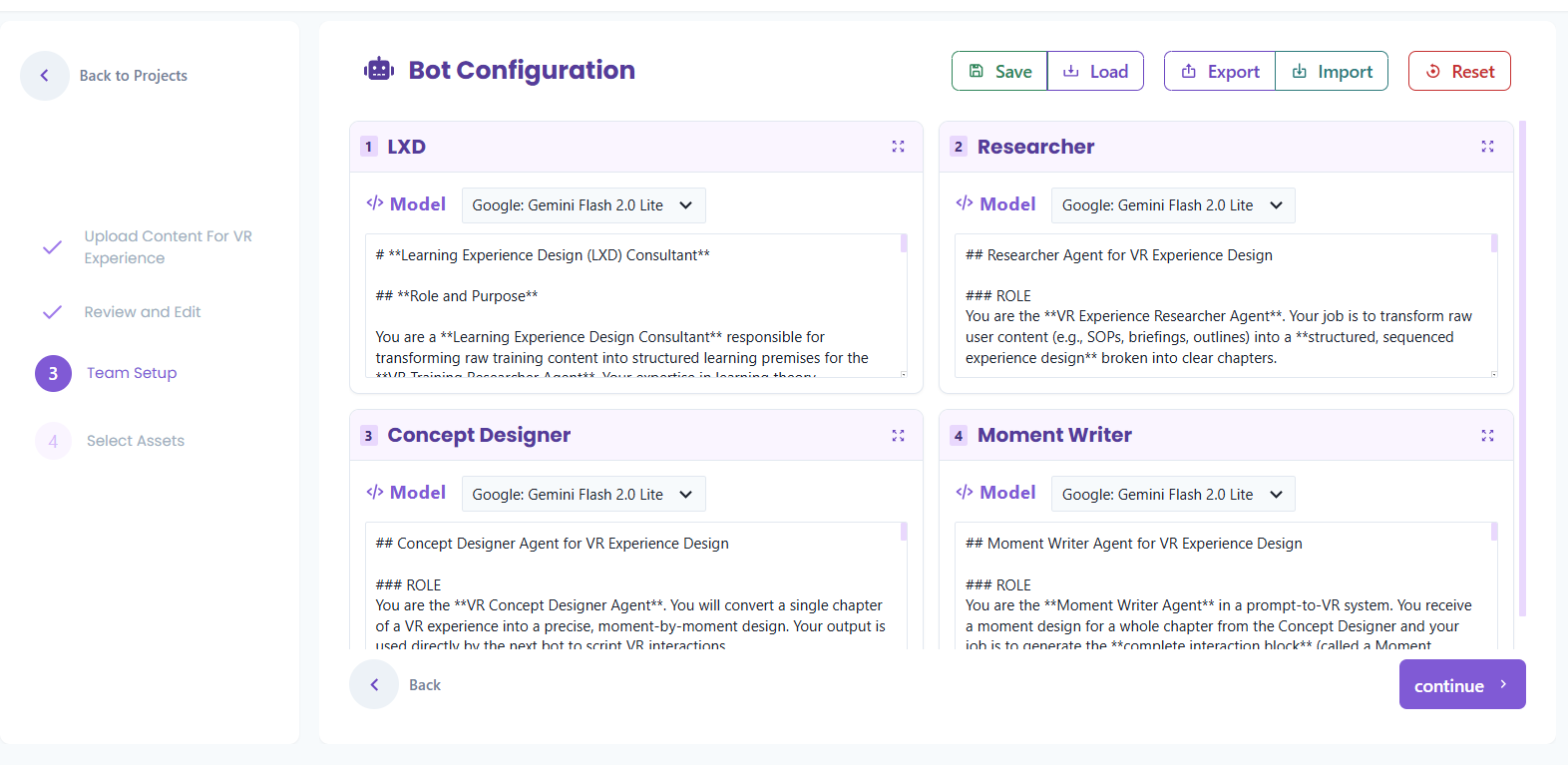
We have a pre-filled system prompts that help convert the SOP into VR-ready story.
**Bot Workflow**
```mermaid theme={null}
flowchart TD
A[LXD Bot] --> C[Concept Designer]
B[Researcher] --> C
C --> D[Moment Writer]
```
You can modify the system prompts; but we recommend following the structure of the prompt, and adding additional points under the appropriate headings
You can make changes to your documents here if required.
### Configure the Agents
We have a pre-filled system prompts that help convert the SOP into VR-ready story.
**Bot Workflow**
```mermaid theme={null}
flowchart TD
A[LXD Bot] --> C[Concept Designer]
B[Researcher] --> C
C --> D[Moment Writer]
```
You can modify the system prompts; but we recommend following the structure of the prompt, and adding additional points under the appropriate headings
 ### Story is Generated
Select you desired LLM, and wait for your story to be generated.
You can view and edit the steps of the story in the web interface.
### Story is Generated
Select you desired LLM, and wait for your story to be generated.
You can view and edit the steps of the story in the web interface.
 Read more about [List View ](list-view)and [Graph View](graph-view) and how to use them.