> ## Documentation Index
> Fetch the complete documentation index at: https://docs-vrsebuilder.autovrse.app/llms.txt
> Use this file to discover all available pages before exploring further.
# Upgrade to Glass UI
> Use the latest UI kit by VRse Builder, which uses a glass-like effect in its panels
## Overview
Glass UI is VRseBuilder's modern UI system featuring real-time blur effects and a sleek, translucent aesthetic. This guide covers setting up Glass UI for the Main Menu scene and upgrading existing UI screens to use Glass UI components.
## How Glass UI Works
Glass UI creates a frosted-glass effect by sampling from a dedicated Render Texture. A separate **Blur Camera** renders only environment objects (on the `Props` layer) into this texture, which Glass UI materials then sample to produce the blur effect behind UI panels.
This architecture means:
* Environment objects must be on the correct layer for blur to render
* VFX and non-essential objects are excluded to preserve performance
* A fallback solid-color mode is available for heavy scenes
***
## 1. Main Menu Scene Setup
The fastest way to get started is using the pre-configured Glass UI menu scene.
 ### Steps
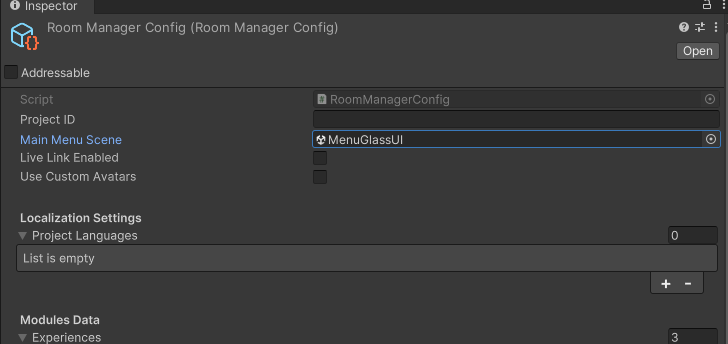
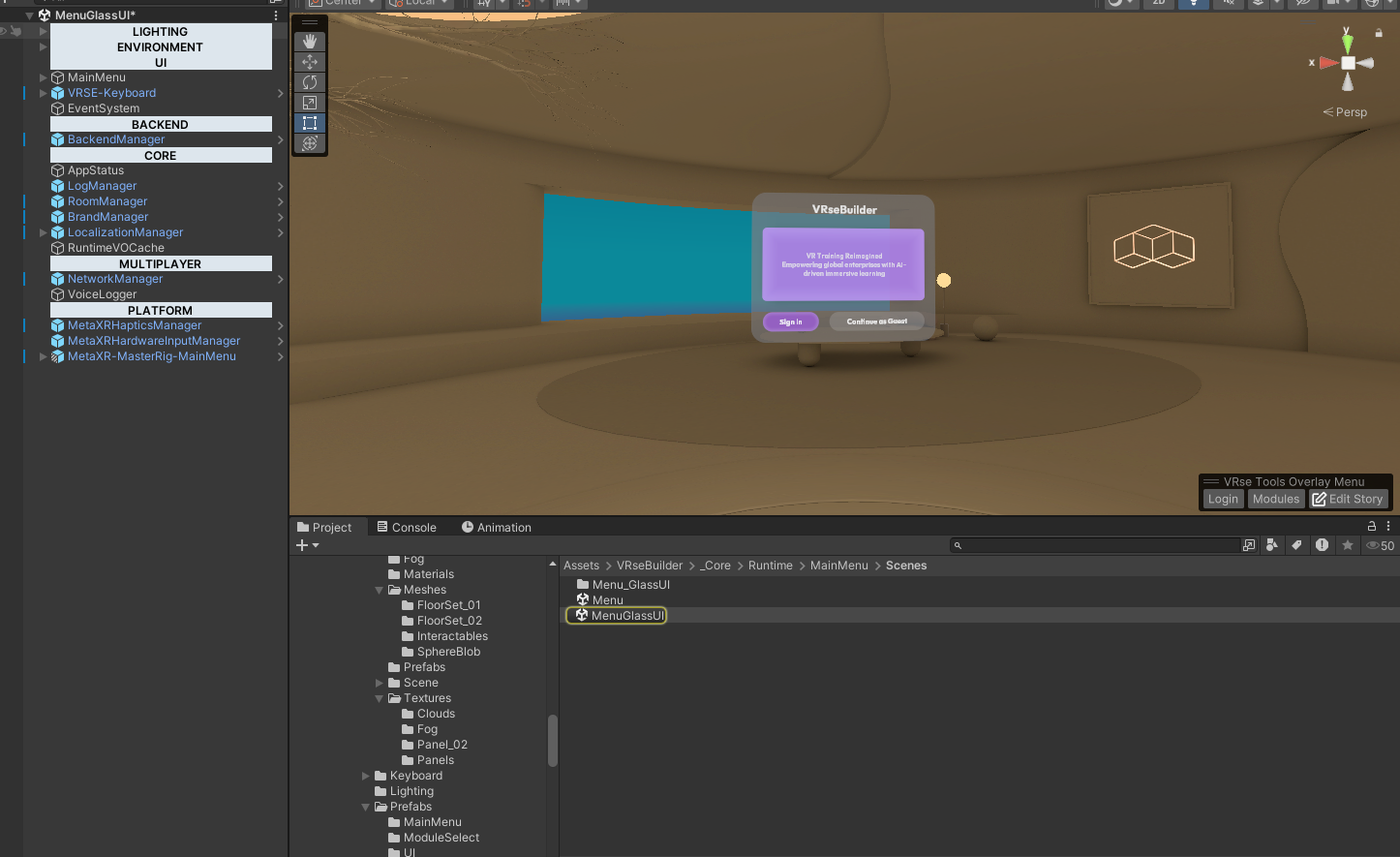
1. Open your project and navigate to: `Assets/VRseBuilder/_Core/Runtime/MainMenu/Scenes/MenuGlassUi`
2. Open **Room Manager** and set your **Target Room** config.
3. In the config file, update the menu scene reference to point to the Glass UI menu scene.
4. Configure your **Login Type** as needed.
> **Note:** The Glass UI menu scene comes fully configured—no additional blur or material setup is required.
### Steps
1. Open your project and navigate to: `Assets/VRseBuilder/_Core/Runtime/MainMenu/Scenes/MenuGlassUi`
2. Open **Room Manager** and set your **Target Room** config.
3. In the config file, update the menu scene reference to point to the Glass UI menu scene.
4. Configure your **Login Type** as needed.
> **Note:** The Glass UI menu scene comes fully configured—no additional blur or material setup is required.
 ***
## 2. Upgrading Existing UI to Glass UI
Use the built-in upgrade tool to convert existing UI screens to Glass UI.
### Steps
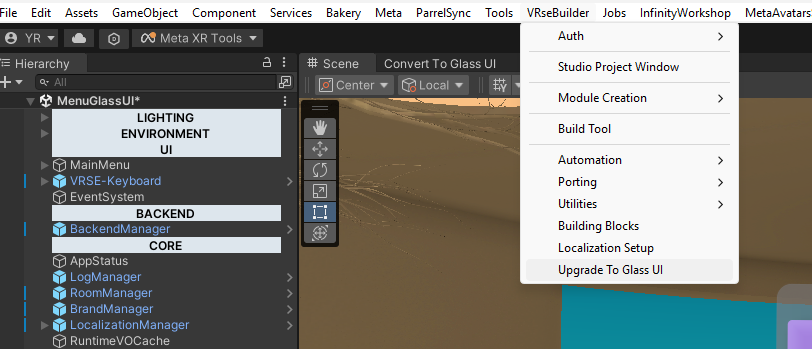
1. Open the upgrade tool via **VRseBuilder → Upgrade To Glass UI**.
2. Click **Upgrade to Glass UI**.
3. Select the UI element(s) to upgrade.
4. Click **Upgrade**.
***
## 2. Upgrading Existing UI to Glass UI
Use the built-in upgrade tool to convert existing UI screens to Glass UI.
### Steps
1. Open the upgrade tool via **VRseBuilder → Upgrade To Glass UI**.
2. Click **Upgrade to Glass UI**.
3. Select the UI element(s) to upgrade.
4. Click **Upgrade**.
 ### What Happens During Upgrade
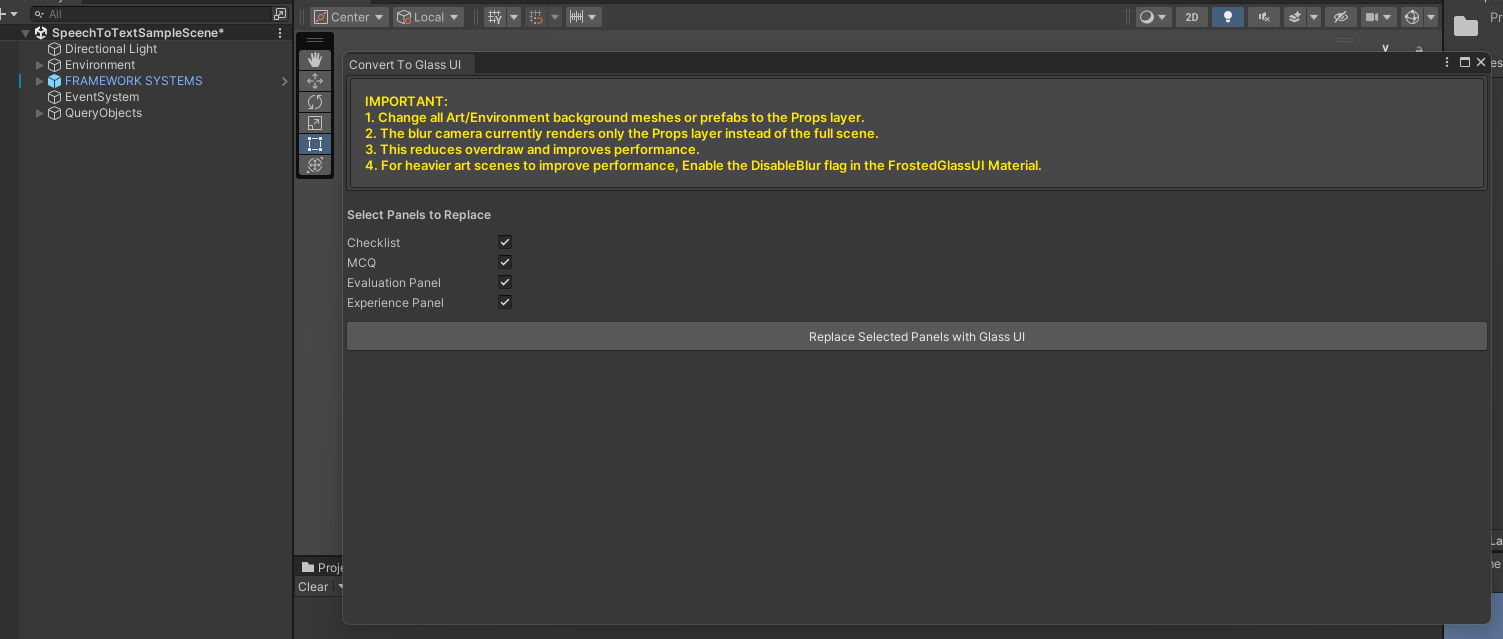
* Selected UI elements are replaced with Glass UI equivalents at the same positions
* Original UI GameObjects are **disabled**, not deleted
* This ensures easy rollback if needed
* **Only the following pre-made UI are supported at the moment:**
* Checklist
* MCQ
* Evaluation Panel
* Experience Panel
### What Happens During Upgrade
* Selected UI elements are replaced with Glass UI equivalents at the same positions
* Original UI GameObjects are **disabled**, not deleted
* This ensures easy rollback if needed
* **Only the following pre-made UI are supported at the moment:**
* Checklist
* MCQ
* Evaluation Panel
* Experience Panel
 **Important**: The Story Creator will still reference the **old UI objects** after upgrade. You must manually update Story Creator references to point to the new **Glass UI objects**—failing to do this will cause runtime logic or flow issues.
***
## 3.Performance Setup (Required)
Proper layer configuration is **mandatory** for Glass UI blur to function correctly.
### Environment Layer Configuration
All environment objects in your scene must be assigned to a layer named:
```
Props
```
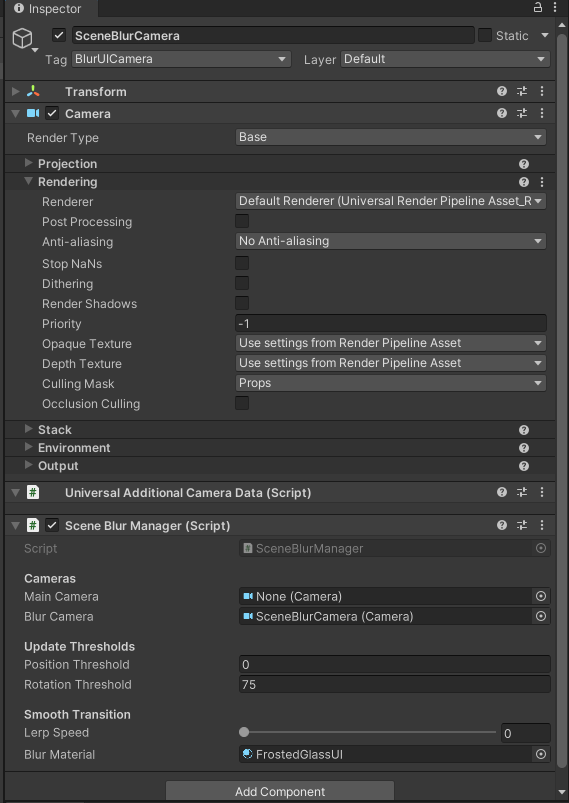
The `SceneBlurCamera` prefab is added automatically during setup with the required references.
**Important**: The Story Creator will still reference the **old UI objects** after upgrade. You must manually update Story Creator references to point to the new **Glass UI objects**—failing to do this will cause runtime logic or flow issues.
***
## 3.Performance Setup (Required)
Proper layer configuration is **mandatory** for Glass UI blur to function correctly.
### Environment Layer Configuration
All environment objects in your scene must be assigned to a layer named:
```
Props
```
The `SceneBlurCamera` prefab is added automatically during setup with the required references.
 ### Why This Matters
The blur effect depends on a Render Texture generated by a dedicated Blur Camera. To optimize performance:
* Only environment objects should be rendered by this camera
* VFX, UI, and other non-essential layers are excluded
### Consequences of Incorrect Setup
If environment objects are **not** on the `Props` layer:
* Blur will not render correctly, **or**
* Performance will degrade significantly due to unnecessary rendering
> **Important:** Always verify your environment objects are on the `Props` layer before testing Glass UI. This is the most common cause of blur issues.
***
## Materials, Shaders, and Templates
All Glass UI materials and shaders ship with sensible defaults. No manual tweaking is required to get started.
You can use the shaders present here to make your custom UI, or use some existing prefabs which work out of the box with the system
### Pre-Made Templates
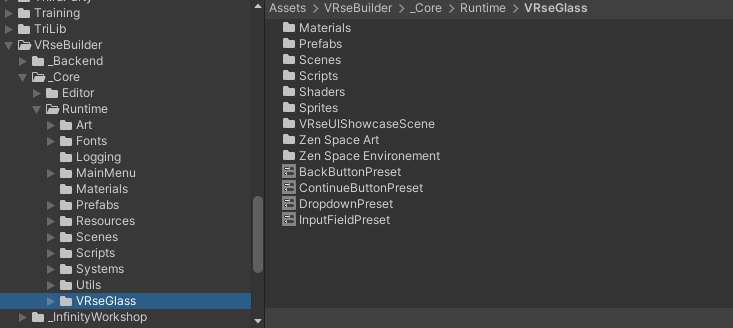
The system includes ready-to-use Glass UI templates located in the **VRseGlass** folder - Open your project and navigate to: `Assets/VRseBuilder/_Core/Runtime/VRseGlass`
* Buttons
* Panels
### Why This Matters
The blur effect depends on a Render Texture generated by a dedicated Blur Camera. To optimize performance:
* Only environment objects should be rendered by this camera
* VFX, UI, and other non-essential layers are excluded
### Consequences of Incorrect Setup
If environment objects are **not** on the `Props` layer:
* Blur will not render correctly, **or**
* Performance will degrade significantly due to unnecessary rendering
> **Important:** Always verify your environment objects are on the `Props` layer before testing Glass UI. This is the most common cause of blur issues.
***
## Materials, Shaders, and Templates
All Glass UI materials and shaders ship with sensible defaults. No manual tweaking is required to get started.
You can use the shaders present here to make your custom UI, or use some existing prefabs which work out of the box with the system
### Pre-Made Templates
The system includes ready-to-use Glass UI templates located in the **VRseGlass** folder - Open your project and navigate to: `Assets/VRseBuilder/_Core/Runtime/VRseGlass`
* Buttons
* Panels
 Use these templates as a base when creating custom Glass UI elements.
***
## Blur Control and Fallback
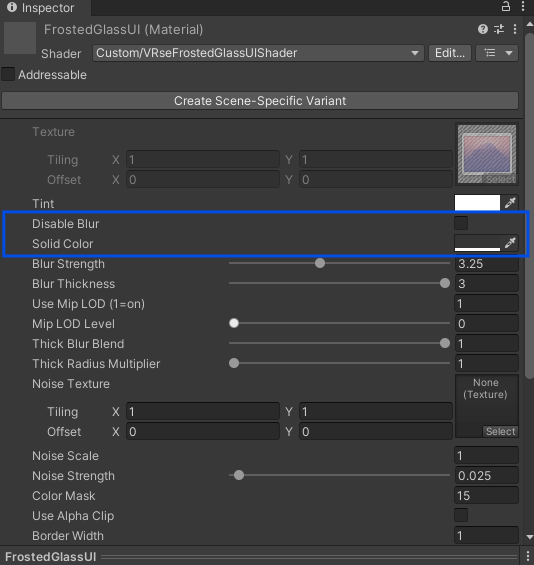
A **Disable Blur** flag is available on Glass UI materials for performance-critical scenarios.
### When Blur Is Disabled
* The blur texture is not sampled
* UI displays the solid color assigned in the material instead
Use these templates as a base when creating custom Glass UI elements.
***
## Blur Control and Fallback
A **Disable Blur** flag is available on Glass UI materials for performance-critical scenarios.
### When Blur Is Disabled
* The blur texture is not sampled
* UI displays the solid color assigned in the material instead
 > **Tip:** Use this fallback for heavy art scenes or when targeting lower-end hardware where blur sampling would impact frame rate.
***
## Troubleshooting
| Issue | Solution |
| ---------------------------------- | ---------------------------------------------------------------- |
| Blur not rendering | Verify all environment objects are on the `Props` layer |
| Performance issues | Enable **Disable Blur** flag or reduce objects on `Props` layer |
| Story Creator broken after upgrade | Manually update references to new Glass UI objects |
| Old UI still visible | Ensure old GameObjects are disabled (they are kept for rollback) |
> **Tip:** Use this fallback for heavy art scenes or when targeting lower-end hardware where blur sampling would impact frame rate.
***
## Troubleshooting
| Issue | Solution |
| ---------------------------------- | ---------------------------------------------------------------- |
| Blur not rendering | Verify all environment objects are on the `Props` layer |
| Performance issues | Enable **Disable Blur** flag or reduce objects on `Props` layer |
| Story Creator broken after upgrade | Manually update references to new Glass UI objects |
| Old UI still visible | Ensure old GameObjects are disabled (they are kept for rollback) |